
Body Care
How to Enable Education Edition in Minecraft (Bedrock Edition)
May
If you have ever opened Minecraft Bedrock Edition, noticed an option called Education Edition, and wondered whether flipping it would instantly turn your world into a classroom with homework, relax. No teacher will spawn behind you holding a clipboard. In Minecraft Bedrock Edition, enabling Education Edition features simply unlocks selected educational tools, especially chemistry-related items, inside that specific world.
This guide explains exactly how to enable Education Edition in Minecraft Bedrock Edition, what the setting actually does, what it does not do, and how to test whether the feature is working. It also covers common problems, achievement warnings, multiplayer notes, and practical examples so you can start experimenting without accidentally turning your favorite survival world into a science lab with commitment issues.
What Does “Education Edition” Mean in Minecraft Bedrock?
First, the important clarification: Minecraft Education and the Education Edition toggle in Bedrock Edition are not the same thing.
Minecraft Education is a separate school-focused version of Minecraft built for classrooms, teachers, lessons, coding, collaboration, and structured learning. It includes features such as lesson libraries, classroom tools, NPCs, coding activities, chemistry labs, and educator resources.
The Education Edition option in Minecraft Bedrock Edition is much narrower. It does not convert your regular Bedrock game into the full Minecraft Education app. Instead, it enables a set of educational gameplay features inside a Bedrock world, most famously the chemistry items. Think of it as opening the science closet, not enrolling in a semester-long course.
Before You Enable It: A Quick Warning About Achievements
In Minecraft Bedrock Edition, many advanced settings are tied to cheats or world-level changes. When you enable features that require cheats, Minecraft may warn you that achievements will be disabled in that world. This matters because once achievements are disabled in a Bedrock world, turning cheats off later usually does not bring them back.
So before you start pressing buttons like a redstone engineer who just drank three potions of swiftness, make a copy of any world you care about. If you are testing chemistry items, use a new Creative world. Your long-term Survival kingdom, your diamond vault, and your emotionally important pet sheep named Professor Woolington deserve better than being used as an experiment without backup.
How to Enable Education Edition in a New Minecraft Bedrock World
The easiest and cleanest way to enable Education Edition features is to create a fresh world. This avoids risking your main Survival world and gives you a safe place to experiment.
Step 1: Open Minecraft Bedrock Edition
Launch Minecraft Bedrock Edition on your device. This can be Minecraft for Windows, mobile, console, or another supported Bedrock platform. Menu names may vary slightly depending on your version and device, but the general path is the same.
Step 2: Select “Play”
From the main menu, choose Play. This opens your list of worlds, Realms, and servers.
Step 3: Create a New World
Select Create New, then choose Create New World. You will now see the world settings screen, where you can set the game mode, difficulty, world type, seed, and other options.
Step 4: Choose Creative Mode for Testing
For your first Education Edition test, set the world to Creative. You can use Survival later, but Creative mode makes it easier to access items, test recipes, and confirm the feature is active without spending half an hour punching trees like it is 2011 again.
Step 5: Find the Education Edition Option
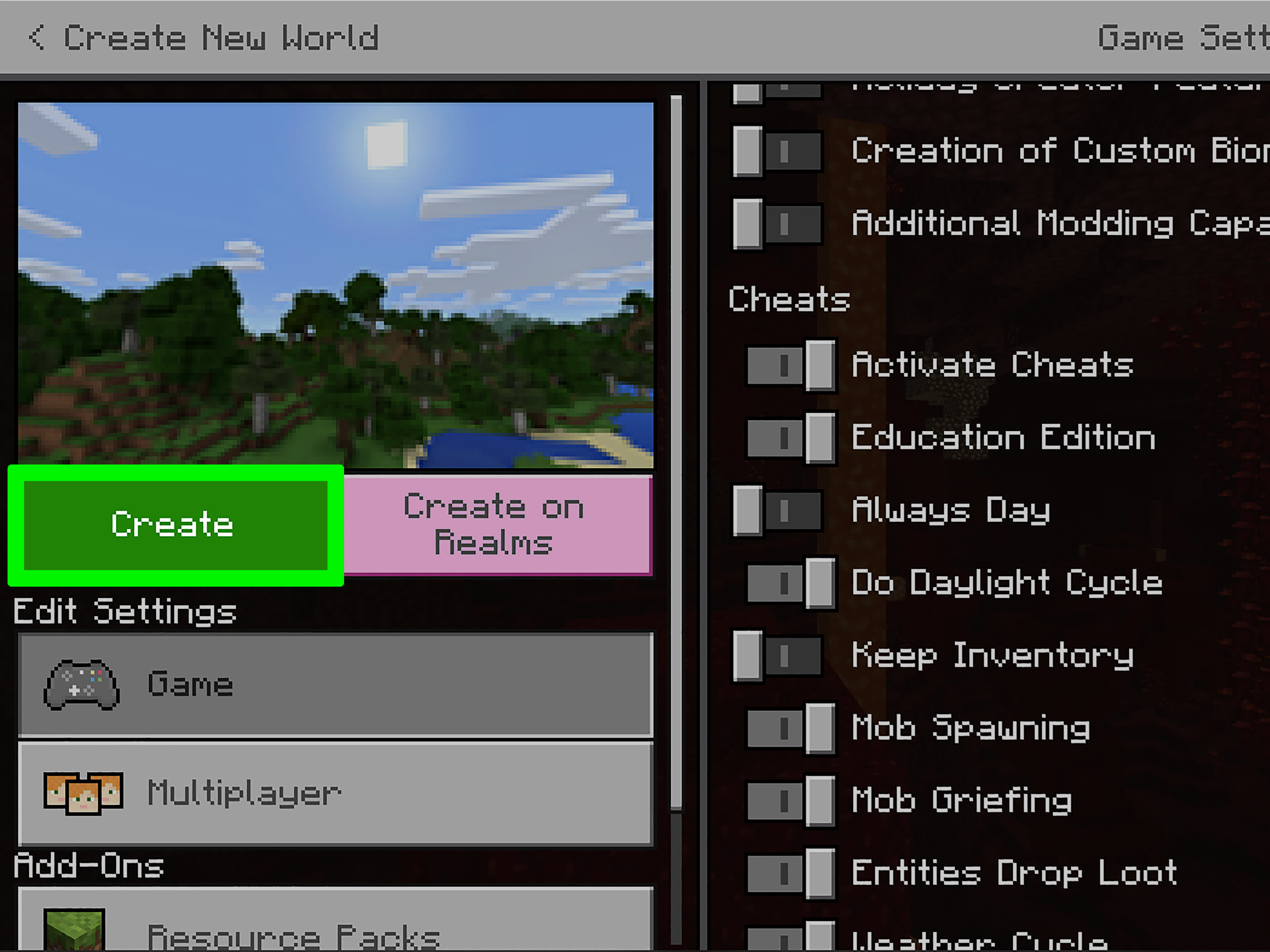
Scroll through the world settings. Look for an option labeled Education Edition or similar wording. Depending on your current Minecraft version, this may appear under game settings, cheats, or world options. Toggle it on.
Step 6: Accept the Warning
Minecraft may display a warning about world changes, cheats, or achievements. Read it carefully. If you are using a test world, confirm the choice. If you accidentally opened your prized Survival world, back out slowly, make a copy, and pretend nothing happened.
Step 7: Create the World
Once the Education Edition option is enabled, select Create. Minecraft will generate the world with the selected education features active.
How to Enable Education Edition in an Existing Bedrock World
You may also be able to enable Education Edition features in an existing world. However, this is where caution becomes more important. Existing worlds may be affected by achievement restrictions, behavior changes, or feature compatibility issues.
Step 1: Back Up the World
From the Worlds list, select the pencil or edit icon next to your world. Look for the option to Copy World. Create a backup before changing anything. This is not dramatic. This is Minecraft survival wisdom. Creepers happen. Settings happen. Backups are cheaper than regret.
Step 2: Edit the Copied World
Open the settings for the copied world, not the original. Scroll through the game settings and look for the Education Edition toggle.
Step 3: Turn On Education Edition
Enable the toggle. If Minecraft gives you a warning about achievements or cheats, accept it only if you are comfortable with the change.
Step 4: Launch and Test
Enter the copied world and check whether the chemistry-related items are available. If everything works, you can continue using the copy as your educational or experimental version.
How to Check If Education Edition Features Are Working
After enabling the option, you should test it immediately. The simplest method is to open the Creative inventory and search for chemistry-related blocks and items.
Search for Chemistry Tools
Look for these items:
- Element Constructor
- Compound Creator
- Lab Table
- Material Reducer
- Elements such as Hydrogen, Oxygen, Carbon, Sodium, and Helium
- Products such as balloons, glow sticks, bleach, super fertilizer, and underwater torches
If you see these items, congratulations. You have successfully opened the tiny blocky door to Minecraft science. Please wear imaginary safety goggles.
Try a Simple Chemistry Example
A fun first test is to create water. Use the Element Constructor to obtain Hydrogen and Oxygen. Then use the Compound Creator to combine the correct elements into H2O. You can also experiment with compounds like salt, ammonia, sugar, sodium hypochlorite, and other materials.
The chemistry system is built around the idea that players can create elements, combine them into compounds, and use those compounds to craft special products. It is Minecraft, but with just enough science to make your old chemistry teacher nod approvingly.
What Can You Do With Education Edition Features?
Once enabled, the feature is most useful for chemistry experiments, classroom-style demonstrations, creative builds, and custom learning worlds. It is especially popular with players who want unusual items that do not appear in normal Survival gameplay.
Use the Element Constructor
The Element Constructor lets you create elements by adjusting protons, neutrons, and electrons. In simple terms, you are building atoms. In slightly less simple terms, you are doing atomic structure inside a sandbox game where chickens can ride minecarts. Minecraft remains undefeated.
Use the Compound Creator
The Compound Creator lets you combine elements into compounds. For example, Hydrogen and Oxygen can form water, while Sodium and Chlorine can form salt. Many compounds are then used in recipes for special items.
Use the Lab Table
The Lab Table is where experiments become products. By combining elements and compounds, you can create items such as bleach, heat blocks, ice bombs, and super fertilizer. If the recipe does not work, the Lab Table may produce a “garbage” item, which is Minecraft’s polite way of saying, “Nice try, future scientist.”
Use the Material Reducer
The Material Reducer breaks Minecraft blocks down into their component elements. This is useful for lessons about what materials are made of. It also gives players a new way to look at ordinary blocks. Dirt is no longer just dirt. It is a tiny geological mystery wearing a brown outfit.
Useful Education Edition Items in Bedrock
Some of the most entertaining education-related items include:
- Balloons: Created with helium, latex, dye, and a lead. They can be attached to fences and mobs.
- Glow sticks: Crafted with dye, polyethylene, luminol, and hydrogen peroxide.
- Underwater torches: Useful for lighting underwater builds.
- Underwater TNT: A special version of TNT designed to work underwater.
- Bleach: Used to turn colored wool, carpets, beds, or banners white.
- Super fertilizer: Grows plants quickly, making regular bone meal look like it needs a motivational speech.
Can You Use Commands With Education Edition Features?
Yes, commands can be useful when building an Education Edition world, especially if you are creating a classroom map, puzzle, lab, museum, or guided activity. Commands such as /give, /setblock, /tp, and /gamemode can help you control the experience.
However, commands in Bedrock Edition usually require cheats or sufficient permissions. If you enable cheats, achievements can be disabled for that world. For a test world or Creative build, this is normally fine. For a serious achievement Survival world, it is a deal-breaker. Choose wisely, brave block scholar.
Does This Work in Minecraft Java Edition?
No, this guide is for Minecraft Bedrock Edition. Java Edition does not have the same built-in Education Edition toggle. Java players can use mods or data packs for educational-style content, but that is a different process and not the same as enabling Bedrock’s Education Edition features.
Does This Give You the Full Minecraft Education App?
No. Enabling Education Edition in Bedrock does not give you the full Minecraft Education platform. You will not automatically get the full lesson library, classroom management tools, student login systems, educator resources, Code Builder workflow, or all features available in Minecraft Education.
For the complete classroom version, schools, educators, and learners need the actual Minecraft Education app and the proper account or license. The Bedrock toggle is best understood as a feature switch for selected educational gameplay items, not a replacement for the dedicated education product.
Common Problems and Fixes
I Cannot Find the Education Edition Toggle
Make sure you are playing Minecraft Bedrock Edition, not Java Edition. Also check that your game is updated. On some platforms or versions, menu layouts change, and the option may appear in a different section or may not be available in the same way.
The Chemistry Items Are Missing
Confirm that the world was created or edited with Education Edition enabled. Then open Creative inventory and search directly for “element,” “compound,” “lab,” “material,” “balloon,” or “glow stick.” If nothing appears, restart the game and check the world settings again.
Achievements Stopped Working
If you enabled cheats or accepted a warning that achievements would be disabled, that world may no longer be eligible for achievements. This is why using a copy or a new test world is strongly recommended.
My Friends Cannot Use the Items
In multiplayer, make sure everyone is joining the same world with Education Edition features enabled. Also check player permissions. Some actions may require operator privileges, Creative mode, or access to the correct inventory.
Best Uses for Education Edition in Bedrock
Education Edition features are great for science builds, school demonstrations, museum maps, escape rooms, chemistry labs, and creative experiments. A teacher might build a periodic table gallery. A student might create a puzzle where players must craft the right compound to unlock the next room. A casual player might attach balloons to mobs and laugh for ten minutes. All are valid forms of learning, probably.
For example, you can design a “Chemistry Quest” world. Players enter a lab, receive clues, create water, craft bleach, clean a stained banner, make super fertilizer, grow a plant, and unlock the next stage. This turns the chemistry system into a hands-on puzzle instead of a dry list of formulas.
Extra Experience: What It Feels Like to Use Education Edition Features in Bedrock
Using Education Edition features in Minecraft Bedrock feels a little like discovering a secret wing of a house you already live in. You know the walls, the crafting table, the creepers, and the familiar panic of hearing a skeleton before you see it. Then suddenly, there is an Element Constructor sitting there like a science fair project that wandered into your block world.
The first surprise is how natural it feels. Minecraft has always been about experimenting. You punch a tree, make tools, mine stone, melt ore, craft machines, and build farms. Chemistry simply adds another layer to that same loop. Instead of asking, “What can I craft with wood and iron?” you start asking, “What happens if I combine these elements?” That question is the heart of both Minecraft and science.
The second surprise is how good these features are for creative map-making. Balloons can add personality to builds, especially party rooms, classrooms, birthday maps, amusement parks, and village festivals. Underwater torches are excellent for ocean bases. Glow sticks make fun props for adventure maps. Super fertilizer is handy for fast garden demonstrations. Even bleach has practical use when you need to reset colored blocks without rebuilding everything.
For classrooms or family learning, the biggest advantage is conversation. A parent or teacher does not have to lecture for twenty minutes about compounds. Instead, the player tries to make something, fails, adjusts, and tries again. That loop teaches curiosity, pattern recognition, and patience. The game becomes a safe place to be wrong. In normal life, being wrong can feel embarrassing. In Minecraft, being wrong creates garbage from the Lab Table, and everyone moves on.
There is also a useful lesson in limits. Bedrock’s Education Edition toggle is fun, but it is not the full Minecraft Education experience. That distinction helps users choose the right tool. If you want a casual chemistry sandbox, Bedrock can be enough. If you need structured lessons, classroom management, coding activities, and school deployment support, the dedicated Minecraft Education app is the better choice.
My best advice is to build a small test lab before attempting anything ambitious. Make a flat Creative world, enable Education Edition, place the four main chemistry stations in a row, add labeled signs, and test one recipe at a time. Keep a chest for elements, another for compounds, and another for finished products. Within fifteen minutes, you will understand the basic flow. Within thirty minutes, you will probably be attaching balloons to something that should not fly. This is normal. Science has a long history of people saying, “I wonder what happens if…” Minecraft simply makes that sentence safer and much funnier.
Conclusion
Enabling Education Edition in Minecraft Bedrock Edition is simple: create or edit a world, find the Education Edition option, turn it on, accept the warning, and test the chemistry tools in Creative mode. The key is understanding what you are enabling. This setting unlocks selected educational features, especially chemistry content, but it does not replace the full Minecraft Education app.
For casual players, it is a fun way to explore balloons, glow sticks, underwater torches, compounds, and elements. For teachers and parents, it can turn Minecraft into a hands-on learning space. For map creators, it opens the door to labs, puzzles, museums, and creative science builds. Just remember the golden rule: make a backup before changing important worlds. Even in Minecraft science, safety comes first.

