
Beauty Unlocked
How to Turn Off Auto Emoji on Discord: Computer + Mobile
Aug
Discord is a wonderful place to chat, game, build communities, and accidentally turn a perfectly innocent 🙂 into a giant smiling emoji that feels just a little too enthusiastic. Sometimes you want the classic old-school emoticon. Sometimes you are typing code, roleplay dialogue, notes, or dry sarcasm, and the automatic emoji conversion barges in like a confetti cannon at a library.
The good news: you can turn off auto emoji on Discord. The slightly annoying news: the setting is easiest to find on the desktop app or browser version, while mobile users may need to adjust the same account setting from desktop or Discord in a mobile browser using desktop mode. Once changed, the preference usually follows your Discord account across devices.
This guide explains how to disable Discord auto emoji on computer, web browser, iPhone, iPad, and Android. You will also learn quick workarounds, troubleshooting fixes, and what to do when Discord still converts certain characters after you swear you turned the setting off. Because yes, technology sometimes behaves like a raccoon with admin privileges.
What Is Auto Emoji on Discord?
Auto emoji is Discord’s feature that automatically converts typed emoticons into emoji. For example, when you type 🙂, Discord may turn it into a smiling emoji. Type 😀, and Discord may replace it with a grinning face. The feature is meant to make messages look more expressive without forcing users to open the emoji picker every time.
For many users, this is convenient. For others, it is deeply unnecessary. A text-based emoticon has its own mood. A simple 🙂 can feel calm, nostalgic, sarcastic, or politely ominous. A bright emoji, on the other hand, can look like it just drank three energy drinks and joined a party server.
Discord’s auto emoji setting affects common emoticons in your own messages. It does not remove emoji reactions from messages, delete custom server emojis, block other people from using emojis, or disable the emoji picker. It only changes whether your typed emoticons automatically become emoji when you send a message.
Quick Answer: How to Turn Off Auto Emoji on Discord
On Discord desktop or web, open User Settings, go to Text & Images or Chat, then turn off Automatically convert emoticons in your messages to emoji. After that, send a test message such as 🙂 or 😀. If it stays as plain text, you win. Please celebrate responsibly.
On mobile, the option may not always appear in the iOS or Android app depending on your app version and interface. The most reliable mobile-friendly method is to log in through Discord on a browser, request the desktop version of the site, then change the same setting there. Another option is to change it from a computer once; the preference should apply to your account.
How to Turn Off Auto Emoji on Discord on Computer
The desktop method is the easiest way to stop Discord from changing text emoticons into emoji. These steps work for the Discord desktop app on Windows, macOS, and Linux. They also work in Discord’s browser version, although the exact layout may look slightly different depending on your screen size and current Discord design.
Step 1: Open Discord
Launch the Discord desktop app or open Discord in your web browser. Make sure you are signed in to the account where you want to disable auto emoji. This matters because Discord settings are connected to your user account, not just one server.
Step 2: Open User Settings
Look at the lower-left corner of Discord, near your username and avatar. Click the small gear icon. That opens User Settings. This is the control room for your account settings, appearance, notifications, privacy, accessibility, and chat preferences.
Step 3: Go to Text & Images or Chat
In the settings menu, look for Text & Images. In some newer layouts or app versions, similar message-related options may appear under Chat. Discord occasionally changes menu names, because apparently app designers enjoy hide-and-seek.
Do not go to server settings. Auto emoji is a personal user setting, not a server-wide moderation setting. A server owner cannot usually force every member to type 🙂 like it is 2008, no matter how noble the cause.
Step 4: Turn Off Automatic Emoji Conversion
Find the option labeled Automatically convert emoticons in your messages to emoji. Toggle it off. Once the switch is off, Discord should stop converting common emoticons such as 🙂, 🙁, 😀, and 😉 into emoji when you send messages.
Step 5: Test It
Go to a private server, a draft message, or a DM with someone who will not judge your experiments. Type:
Send the message. If the characters remain plain text, auto emoji is off. If they still transform, restart Discord, refresh the browser tab, or check whether you changed the setting on the correct account.
How to Turn Off Auto Emoji on Discord Web
If you do not want to install the desktop app, Discord web works well for changing this setting. Open Discord in a browser, sign in, click the gear icon beside your username, then go to Text & Images or Chat. Disable Automatically convert emoticons in your messages to emoji.
The web version is also useful for Chromebook users, shared computers, or mobile users who need access to settings that may not appear clearly in the mobile app. If you are using a phone browser, you may need to request the desktop site first. More on that below, because mobile browsers love pretending they know what is best for you.
How to Turn Off Auto Emoji on Discord Mobile
Turning off auto emoji on Discord mobile can be simple or mildly ridiculous depending on your app version. Some users may see the setting inside mobile user settings. Others may not. If you cannot find it in the iPhone or Android app, do not panic. You are not missing a secret button guarded by a tiny emoji dragon.
Method 1: Check the Discord Mobile App First
Open the Discord app on iPhone, iPad, or Android. Tap your profile icon or avatar to open account settings. Look for a section named Chat, Text & Images, or similar message settings. If you see Automatically convert emoticons in your messages to emoji, turn it off.
If the setting appears, that is the fastest mobile method. Send a quick 🙂 test message afterward. If it stays plain, congratulations. Your phone has chosen cooperation today.
Method 2: Change the Setting from a Computer
The most reliable method is to use Discord on a computer. Open the desktop app or Discord web, go to User Settings, then Text & Images or Chat, and disable automatic emoticon conversion. Since this is tied to your Discord account, the change should carry over when you use Discord on mobile.
This is the best fix if you use Discord mostly on your phone but have temporary access to a laptop or desktop. You only need to change the setting once. After that, your mobile messages should respect the preference.
Method 3: Use Discord in a Mobile Browser with Desktop Mode
If you do not have a computer nearby, try using your phone’s browser. Open your browser, go to Discord, and request the desktop site. On iPhone Safari, tap the page settings button and choose Request Desktop Website. On Chrome for Android, tap the three-dot menu and enable Desktop site.
After desktop mode is enabled, sign in to Discord, open User Settings, then look for Text & Images or Chat. Turn off Automatically convert emoticons in your messages to emoji. The interface may be cramped on a phone screen, so rotate your phone sideways if needed. It may feel like performing surgery through a mailbox, but it works for many users.
Temporary Workaround: Use a Backslash Before the Emoticon
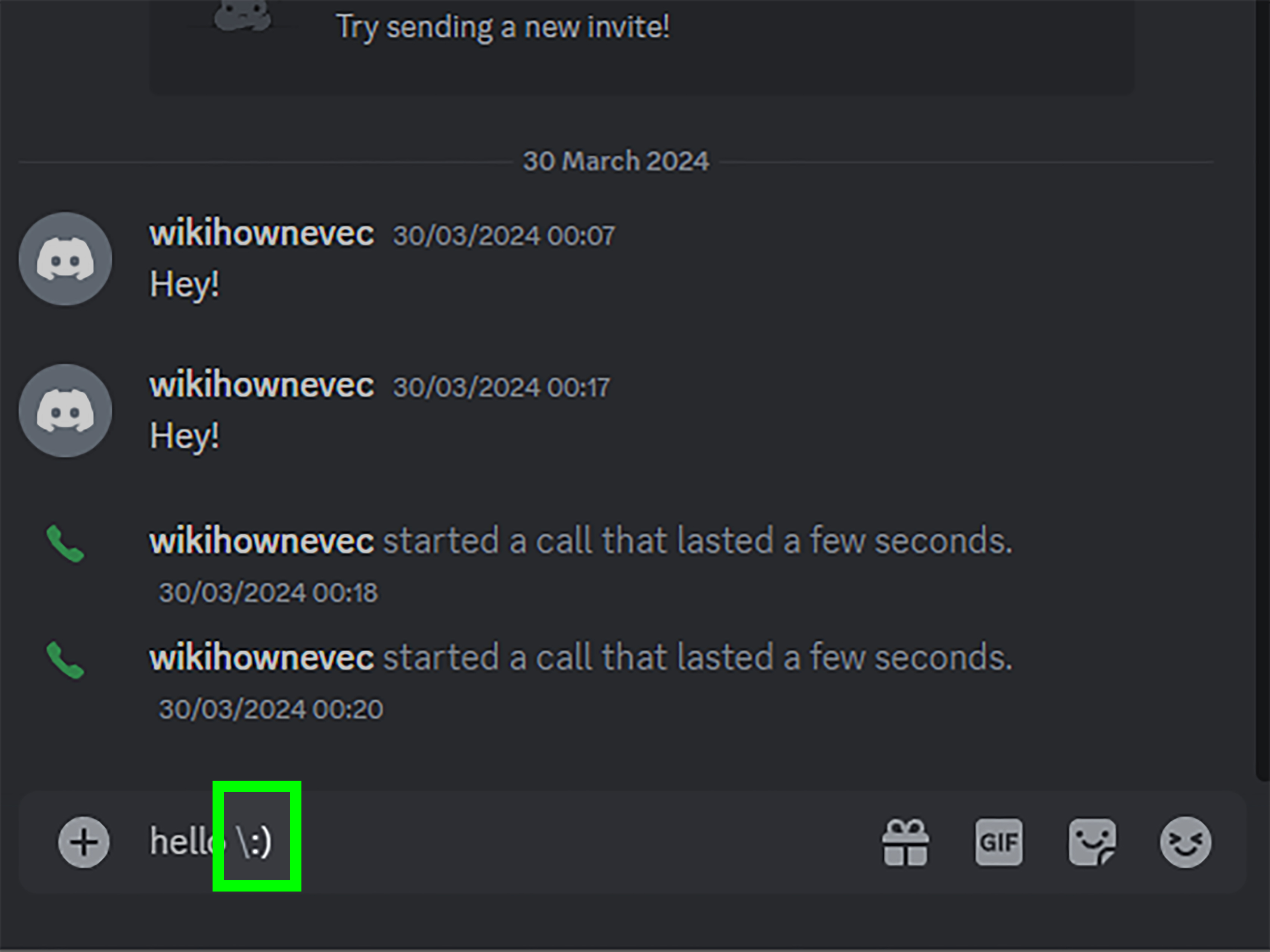
If you do not want to change settings, or you are on a device where the option is hard to reach, use a backslash before the emoticon. For example:
The backslash tells Discord to treat the characters as plain text instead of converting them. When sent, the message should display the emoticon without becoming an emoji. This is perfect when you only need to stop auto emoji once or twice.
The backslash trick is especially helpful for people who switch between casual chatting and formatting-heavy messages. Maybe you want emoji in a gaming server but plain emoticons in a writing group. Maybe you just want to type 🙂 without being emotionally upgraded against your will. Either way, the backslash is your tiny punctuation shield.
Why Discord Still Converts Some Characters
Turning off auto emoji stops common typed emoticons from converting, but it may not prevent every symbol from changing. Some Unicode characters, special symbols, or pasted characters may still appear as emoji-style graphics depending on Discord, your operating system, your font, and the device viewing the message.
For example, characters such as hearts, card suits, or smiley symbols can sometimes render as emoji-like characters even when auto emoticon conversion is disabled. That is not always the same feature as converting 🙂 into an emoji. It can be related to Unicode rendering, system emoji fonts, or Discord’s handling of certain symbols.
If exact text preservation matters, use a code block. Put three backticks before and after your text:
Code blocks are useful for developers, moderators, writers, and anyone who needs Discord to stop being decorative for five seconds.
Auto Emoji vs. Emoji Suggestions vs. Reactions
Many users confuse auto emoji with other Discord emoji features. Turning off auto emoji does not disable emoji suggestions that appear when you type a colon and an emoji name, such as 🙂. It also does not remove emoji reactions under messages, hide custom server emojis, or stop other users from sending emoji.
Here is the difference:
- Auto emoji: Converts typed emoticons like 🙂 into emoji.
- Emoji picker: Lets you manually choose emoji from a menu.
- Emoji autocomplete: Suggests emoji when you type names like :joy:.
- Reactions: Emoji responses attached to existing messages.
- Custom emojis: Server-uploaded emojis that may require Nitro outside their home server.
If your goal is only to keep classic emoticons, turn off auto emoji. If your goal is to remove emoji reactions or custom emojis from a server, that is a different settings and permissions conversation.
How to Keep Some Emojis but Stop Auto Emoji
You do not have to become anti-emoji to disable auto emoji. This setting does not ban joy from your keyboard. You can still open the emoji picker, use standard Unicode emoji, react to messages, and type custom emoji codes. You are simply telling Discord, “Please do not automatically redecorate my punctuation.”
This setup is ideal for users who like manual control. You can type 🙂 when you want an old-school emoticon, then choose an actual emoji when you want one. It is the difference between ordering a coffee and having a barista throw whipped cream on everything because “people like fun.”
Troubleshooting: Auto Emoji Will Not Turn Off
If Discord keeps converting emoticons after you disable the setting, try these fixes:
Restart Discord
Close the desktop app completely and reopen it. On Windows, also check the system tray to make sure Discord is not still running in the background. On Mac, quit the app fully instead of only closing the window.
Refresh Discord Web
If you are using Discord in a browser, refresh the page. If that does not work, sign out and sign back in. Browser sessions can occasionally hold onto old interface states like a dragon sitting on cached treasure.
Update the App
Make sure Discord is updated on desktop and mobile. Older versions may show different settings names or behave inconsistently. Mobile users should also update from the App Store or Google Play.
Check the Correct Account
If you manage multiple Discord accounts, confirm you changed the setting on the account you are actually using. This sounds obvious until you spend 20 minutes troubleshooting your “broken” settings on the wrong login.
Use the Backslash Workaround
If you cannot access the setting immediately, type a backslash before the emoticon. For example, use \:) instead of 🙂. This is the fastest emergency fix.
Use Code Blocks for Exact Text
For technical examples, ASCII art, documentation, bot commands, or roleplay templates, use inline code or code blocks. This protects formatting and keeps Discord from interpreting your text too creatively.
Best Settings for a Cleaner Discord Chat Experience
While you are already in Discord settings, it is worth checking a few related options. Look through message display, accessibility, and text settings. You may find controls for animated emoji, sticker suggestions, link previews, embeds, reduced motion, and media display.
If you prefer a calmer chat experience, reduce animations, limit automatic media previews, and turn off features that distract you. Discord can be a powerful communication tool, but by default it sometimes behaves like a carnival booth with push notifications. A few settings changes can make it feel much cleaner.
Who Should Turn Off Auto Emoji?
You should turn off auto emoji if you prefer plain-text emoticons, write technical messages, moderate servers, paste structured notes, create templates, use ASCII art, or simply dislike Discord changing your tone. Writers and roleplayers often prefer emoticons because they feel subtler. Developers may need exact characters for code examples. Moderators may want clear instructions that do not transform unexpectedly.
It is also useful for people who use emoticons ironically. A plain 🙂 at the end of “sure, that sounds totally safe :)” has a very different flavor from a glowing yellow smiley face. One says “dry humor.” The other says “I have joined the corporate wellness committee.”
Experiences and Practical Tips from Real Discord Use
After spending enough time in Discord servers, you learn that auto emoji is one of those tiny features that can cause surprisingly strong feelings. Nobody joins a server thinking, “Today I will develop opinions about punctuation,” yet here we are. The issue usually starts when someone types a quick 🙂 and Discord turns it into a bright emoji that changes the tone of the message.
In casual gaming chats, this may not matter. A big smiley face fits right in between loot screenshots, voice chat chaos, and someone asking why the healer is fighting a wall. But in writing servers, study groups, coding communities, and moderation channels, automatic emoji conversion can be irritating. Text symbols often need to stay exactly as typed.
One common experience is the “tone mismatch” problem. A user types 🙂 to sound polite but restrained. Discord converts it into an emoji that looks more cheerful than intended. The result can feel strangely different, especially in serious or sarcastic messages. Auto emoji does not understand context. It sees punctuation and thinks, “Ah yes, emotional confetti.”
Another practical issue appears in tutorials and support channels. Imagine explaining to someone that they should type 😀 as part of an example, only for Discord to convert it before the reader can see the exact characters. This is why many moderators and helper communities recommend code formatting for instructions. Inline code and code blocks keep examples stable.
Mobile users often have the most frustrating experience. They search the app settings, tap through menus, and still cannot find the toggle. In that case, the desktop or browser method is usually the cleanest fix. Once the setting is changed at the account level, mobile behavior should follow. If you only have a phone, using desktop mode in a mobile browser is awkward but often workable.
The backslash trick is the best habit to learn. Even if auto emoji is turned off, typing \:) is useful when you are on a shared device, helping another user, or writing in a server where formatting behaves unexpectedly. It is quick, memorable, and does not require digging through settings.
For the cleanest experience, combine three habits: disable automatic emoticon conversion, use backslashes for one-off exceptions, and use code blocks whenever exact formatting matters. That gives you control without removing the fun parts of Discord. You can still use emoji when you actually want emoji. You just stop Discord from making that decision for you.
Conclusion
Turning off auto emoji on Discord is simple once you know where the setting lives. On computer, open User Settings, go to Text & Images or Chat, and disable Automatically convert emoticons in your messages to emoji. On mobile, check the app first; if the option is missing, change it from desktop or use Discord in a mobile browser with desktop mode.
If you need a quick fix, place a backslash before the emoticon, such as \:). For exact formatting, use code blocks. With these tricks, you can keep your classic emoticons, preserve your message tone, and stop Discord from turning every tiny smile into a full theatrical production.
Note: Discord’s interface may show this setting under Text & Images or Chat depending on platform and app version. The guide above was fact-checked against Discord support pages, Discord help articles, and current user-reported behavior for desktop, web, and mobile settings.

