
Hair Care
How to Send Stickers in Facebook Messenger: PC, iOS, Android
Jun
Text messages are useful, but sometimes “Okay” does not quite capture the emotional range of “I am laughing, slightly offended, and also hungry.” That is where Facebook Messenger stickers come in. Stickers are the oversized, expressive cousins of emojis. They can say “Happy birthday,” “I miss you,” “Absolutely not,” or “This meeting could have been an email” without requiring a single typed sentence.
If you want to know how to send stickers in Facebook Messenger on PC, iPhone, iPad, Android, or the web version of Facebook, this guide walks you through every practical method. We will cover where the sticker button is, how to search for stickers, how to use sticker packs, how AI stickers work when available, why stickers may disappear, and how to fix common Messenger sticker problems without throwing your phone into a decorative bowl.
The process is simple once you know where to look. Messenger changes its interface from time to time, and the button placement can vary depending on app version, region, account type, device size, and whether Meta is testing a new design. Still, the basic idea remains the same: open a chat, tap or click the sticker icon, choose a sticker, and send it.
What Are Facebook Messenger Stickers?
Facebook Messenger stickers are large illustrated images used inside chats. Unlike standard emojis, stickers often come in themed packs with characters, moods, animals, phrases, holidays, reactions, or animated expressions. Some are cute. Some are chaotic. Some look like they were designed specifically for replying to family group chats at 11:47 p.m.
Stickers are different from GIFs. A GIF is usually a short looping animation, often pulled from pop culture or internet databases. A sticker is usually a graphic, illustration, or character-style reaction. Messenger also supports avatar stickers, which are sticker versions of your Facebook avatar, and AI-generated stickers in some accounts and regions.
How to Send Stickers in Facebook Messenger on PC
Using Messenger stickers on a computer is slightly different today than it used to be. The standalone Messenger desktop app for Windows and macOS is no longer the main option, and Messenger.com has shifted away from standalone messaging support. For most PC users, the reliable method is to use Facebook’s web messaging area in a browser.
Send Stickers on Facebook Web Messaging
Follow these steps on a Windows PC, Mac, Chromebook, or any desktop browser:
- Open your browser and go to Facebook.
- Log in to your Facebook account.
- Click the Messenger icon or go to your Facebook messages page.
- Open the conversation where you want to send a sticker.
- Look near the message box for the sticker, smiley face, or media icon.
- Click the sticker option.
- Browse the available sticker packs or use the search box if available.
- Click the sticker you want to send.
Important: in most Messenger interfaces, clicking or tapping a sticker sends it immediately. There may not be a dramatic “Are you sure?” warning, because Messenger assumes you are a decisive adult who meant to send that giant dancing cat. Choose carefully.
What If You Do Not See the Sticker Button on PC?
If you do not see a sticker button, try expanding the chat window, opening the conversation in the full messages page instead of the small pop-up chat, or refreshing the browser. Some icons are hidden behind a plus sign, smiley face, or “more” menu. Browser zoom can also hide icons. If your browser is zoomed in at 150%, Messenger may start acting like it is trapped in a tiny apartment.
You can also try another modern browser, such as Chrome, Edge, Firefox, or Safari. Clear your browser cache, disable aggressive extensions, and make sure you are not using a very old browser version. Messenger is a modern web app, and modern web apps can be picky little raccoons.
How to Send Stickers in Facebook Messenger on iPhone and iPad
Sending stickers on iOS is usually the easiest method because the Messenger app is designed around quick taps. The steps below work for most iPhone and iPad users.
Send a Sticker on iOS
- Open the Messenger app on your iPhone or iPad.
- Tap the chat where you want to send a sticker.
- Look near the message field for the smiley face, sticker, or plus icon.
- Tap the sticker icon or open the sticker tab.
- Browse your sticker packs or search for a sticker by keyword.
- Tap a sticker to send it instantly.
Depending on your app version, the sticker area may be grouped with emojis, GIFs, avatar stickers, or AI stickers. If you recently updated Messenger and the button seems to have moved, do not panic. It is probably still there, just hiding like a cat when guests arrive.
Search for Stickers on iPhone
Messenger often lets you search for stickers by typing a word or phrase. For example, try searching for “love,” “birthday,” “sorry,” “laugh,” “coffee,” or “angry.” The results may include standard stickers, GIFs, avatar stickers, or AI sticker suggestions depending on your account.
Search is useful when you have too many sticker packs installed. Nobody wants to scroll through 37 pages of cartoon bears just to find one that says “I’m late.” Search saves time and possibly friendships.
How to Send Stickers in Facebook Messenger on Android
Messenger on Android works much like Messenger on iOS, though the exact icon layout can vary by phone model, screen size, keyboard, and app update.
Send a Sticker on Android
- Open the Messenger app on your Android phone or tablet.
- Tap a conversation.
- Find the sticker, smiley face, or plus icon near the typing box.
- Open the sticker panel.
- Choose a sticker pack or search for a sticker.
- Tap the sticker you want to send.
On some Android layouts, the sticker button may appear beside the text field. On others, it may sit behind a plus icon or inside a media tray. If you are using a third-party keyboard, Messenger’s own sticker panel may look slightly different from the keyboard’s emoji or sticker tools. For the cleanest result, use the sticker panel inside Messenger rather than sending a keyboard sticker as an image.
Search for Stickers on Android
Open the sticker tray and type a keyword into the search field if one appears. Messenger may show sticker packs, GIFs, AI stickers, or suggested reactions. If search is not visible, update the app and check again. Meta rolls out features gradually, which is a polite way of saying your friend may get a shiny button three weeks before you do.
How to Download or Add Sticker Packs
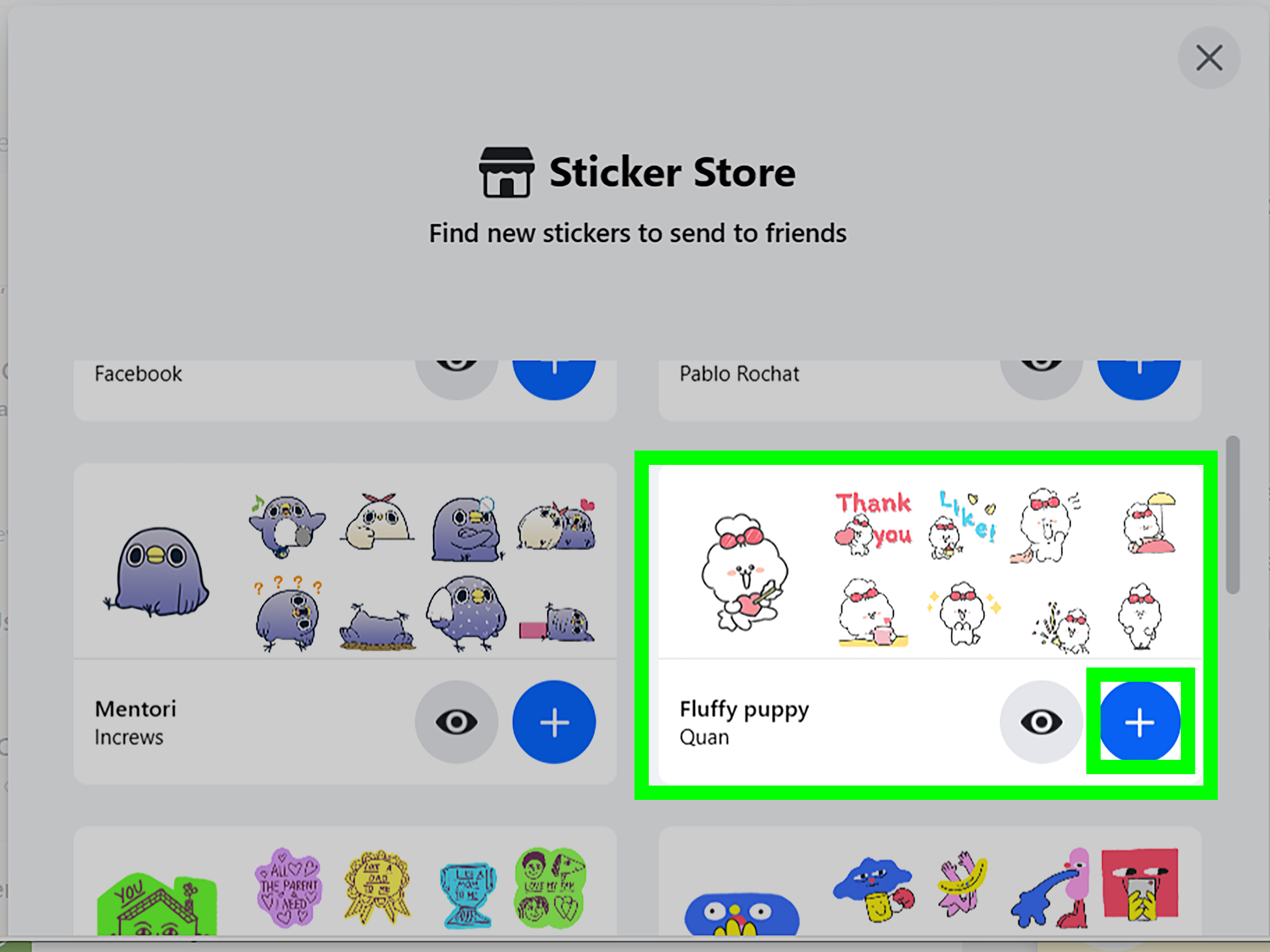
Messenger includes built-in stickers, but you can often add more sticker packs. Sticker packs are collections of related stickers, usually built around a character, theme, mood, brand, holiday, or visual style.
Add New Sticker Packs
- Open a Messenger conversation.
- Open the sticker panel.
- Look for a plus sign, store icon, download icon, or sticker pack menu.
- Browse available sticker packs.
- Tap or click the download/add button next to a pack.
- Return to your chat and select stickers from the new pack.
Sticker pack availability changes over time. Some packs may disappear, some may be seasonal, and some may be available only in certain regions. If a sticker pack your friend uses is not available for you, your account may simply not have access to it.
How to Send Avatar Stickers in Messenger
Avatar stickers use your Facebook avatar to create personalized expressions. If you have created a Facebook avatar, Messenger may show a dedicated avatar sticker pack in the sticker panel.
Send an Avatar Sticker
- Open Messenger.
- Open a chat.
- Tap the sticker icon.
- Find the avatar sticker section.
- Choose the avatar sticker you want.
- Tap it to send.
Avatar stickers are great for reactions because they feel personal without requiring you to take a selfie in terrible kitchen lighting. They can be useful for birthdays, congratulations, thank-you messages, jokes, and “I am pretending to be calm but I am not calm” situations.
How AI Stickers Work in Messenger
Messenger may offer AI-generated stickers in some accounts, regions, and platforms. When available, AI stickers let you type a prompt and generate custom sticker-style images. For example, you might type “sleepy dog drinking coffee” or “robot celebrating Friday,” and Messenger may generate sticker options based on your prompt.
Send an AI Sticker
- Open a Messenger chat.
- Open the sticker panel.
- Look for AI stickers or a prompt field in the sticker search area.
- Type a short, clear description.
- Review the generated sticker options.
- Tap the AI sticker you want to send.
AI sticker availability is not guaranteed. If you do not see the option, your account, region, language, or device may not support it yet. Also, people in the chat may be able to see the prompt associated with the AI sticker, so do not type anything you would not want attached to the final sticker. In other words, keep your prompt less “secret diary” and more “cute raccoon with pancakes.”
Stickers vs. Emojis vs. GIFs: Which Should You Use?
Use an emoji when you need a quick emotional signal. A smiling face, thumbs-up, or heart is simple and lightweight. Use a sticker when you want a bigger, more expressive reaction that feels playful or personal. Use a GIF when you want motion, drama, or a pop-culture reaction.
For example, if someone says, “I got the job,” a simple heart emoji works. A congratulations sticker is warmer. A GIF of someone doing a victory dance is full theater. Choose your level of drama responsibly.
Best Situations for Sending Messenger Stickers
1. Quick Reactions
Stickers are perfect when you want to respond quickly but do not want to type a full sentence. A laughing sticker can replace “That was funny,” and a shocked sticker can replace “I am emotionally processing this information.”
2. Birthdays and Celebrations
Birthday stickers, party stickers, and confetti-style reactions make casual greetings feel more fun. They are especially useful when you are sending a quick message but still want it to feel cheerful.
3. Group Chats
In group chats, stickers help keep the conversation lively. They can also soften sarcasm, signal tone, and prevent your joke from landing like a printer thrown down a stairwell.
4. Apologies and Sweet Messages
A gentle sticker can make “Sorry I forgot” feel less stiff. Of course, if you forgot something major, do not rely only on a sticker. A cartoon bear holding flowers cannot fix everything, but it can at least enter the room first.
5. Business Pages and Customer Chats
For business communication, stickers should be used carefully. A friendly sticker may work for a casual brand, but formal customer support should prioritize clarity. If a customer is upset about a delayed order, sending a dancing banana is probably not the crisis-management strategy your brand needs.
Why Can’t I Send Stickers on Messenger?
If Messenger stickers are not working, the issue is usually caused by app glitches, outdated software, unstable internet, account restrictions, feature testing, or temporary Meta service issues.
Try These Fixes
- Update Messenger from the App Store or Google Play.
- Close and reopen the app.
- Restart your phone or computer.
- Check your internet connection.
- Try switching between Wi-Fi and mobile data.
- Clear the Messenger cache on Android if needed.
- Use Facebook web messaging on PC.
- Disable browser extensions that may block scripts.
- Check whether Messenger is down for other users.
- Wait if the issue appears after a new app update.
If a specific sticker pack is missing, it may have been removed, region-limited, or unavailable for your account. If all stickers are missing, update the app first. If the sticker tray opens but nothing loads, the problem may be a connection or cache issue.
Privacy and Safety Tips for Messenger Stickers
Stickers are fun, but they are still part of a conversation. Do not send offensive, harassing, or inappropriate stickers. In professional or mixed group chats, choose stickers that are friendly and easy to understand. Humor does not travel equally well across ages, cultures, teams, or family branches. Your cousin may love an absurd sticker. Your boss may not.
Also be thoughtful with AI stickers. Avoid prompts that include private information, real people in sensitive contexts, or anything that could be misunderstood. A sticker should improve the chat, not become the subject of a three-hour “What did you mean by that?” investigation.
Practical Examples of Messenger Sticker Use
Example 1: Replying to Good News
Your friend says, “I passed my exam!” Instead of typing only “Congrats,” send a celebration sticker with confetti or a dancing character. It feels warmer and more memorable.
Example 2: Ending a Conversation Politely
If the conversation is winding down, a sleepy sticker or waving sticker can gently signal “I’m heading out” without sounding cold.
Example 3: Making a Reminder Friendlier
Instead of writing, “Please send the file,” try “Friendly reminder about the file” with a polite sticker. It keeps the message light while still being clear.
Example 4: Responding When Words Fail
Sometimes a friend sends news so strange that language gives up and goes home. A wide-eyed sticker can communicate exactly what you mean.
Common Mistakes to Avoid
Sending Too Many Stickers
One sticker is expressive. Twelve stickers in a row is a parade. Use stickers to enhance the conversation, not bury it under cartoon emotions.
Using Stickers in Serious Conversations
If someone is sharing bad news, choose words first. A supportive message is better than a random sad puppy sticker, unless you know the person well and the sticker fits the moment.
Assuming Everyone Sees the Same Stickers
Messenger features vary. Your friend may not have the same sticker pack, AI sticker option, or avatar sticker feature. If they ask where you found a sticker, explain that it may depend on app version or availability.
Tapping Before Previewing
Many stickers send instantly when tapped. Look before you tap, especially if you are chatting with a client, teacher, parent, or someone who does not need to receive a sticker of a screaming raccoon at 8:03 a.m.
Experience-Based Tips for Sending Stickers in Facebook Messenger
After watching how people actually use Messenger stickers across everyday chats, one thing becomes clear: stickers work best when they match the rhythm of the conversation. The best sticker is not always the funniest one. It is the one that arrives at the right moment. If your friend sends a joke, a laughing sticker feels natural. If someone shares good news, a celebration sticker adds energy. If the chat has gone quiet, a gentle waving sticker can restart the conversation without making it feel like you are knocking on the door with a frying pan.
A useful habit is to keep a few favorite sticker packs ready instead of downloading every pack you see. Too many packs can make the sticker tray feel cluttered. When you need a quick reaction, you do not want to scroll through a digital warehouse of cartoon cats, holiday pumpkins, sleepy pandas, glitter hearts, and one mysterious character you downloaded in 2016 and no longer understand. Keep the packs you actually use: reactions, birthdays, love, thanks, funny animals, and maybe one weird pack for personality.
On mobile, stickers feel faster because your thumb is already near the chat box. On PC, stickers are better for relaxed conversations where you have time to click through menus. If you are using Facebook messages in a browser, make sure the chat window is wide enough so the icons are visible. Small pop-up windows can hide the sticker button, which makes it look like Messenger forgot how fun works. Opening the full message view usually solves that problem.
For group chats, stickers can either make you the hero or the person everyone silently mutes. Use them like seasoning. A little makes the chat better; too much turns the soup into a glitter explosion. If the group is joking, stickers are perfect. If the group is planning something important, like travel details or a work deadline, use text first and stickers second.
For families, stickers can bridge tone. A parent may send a thumbs-up sticker instead of writing a full reply. A sibling may send a dramatic crying sticker when the pizza is gone. These small visuals keep conversations warm and casual. For long-distance friendships, a sticker can make a simple “thinking of you” feel more personal, especially when nobody has the energy to type a heartfelt paragraph.
For businesses, the experience is different. Stickers can humanize a brand, but they should fit the customer’s mood. A cheerful sticker after a successful order confirmation may be fine. A silly sticker during a complaint can feel dismissive. When in doubt, use clear words. Stickers should support the message, not replace professionalism.
The biggest lesson is simple: Messenger stickers are not just decoration. They are tone tools. They help people read emotion in a space where facial expressions and voice are missing. Used well, they make digital conversations feel warmer, quicker, and more human. Used badly, they make everyone wonder why a cartoon avocado is involved in a serious discussion. Choose wisely, tap carefully, and let the sticker do what stickers do best: say the thing with more color than your keyboard could manage.
Conclusion
Sending stickers in Facebook Messenger is easy once you know where the sticker panel lives. On iPhone and Android, open a chat, tap the sticker or smiley icon, choose a sticker, and send it. On PC, use Facebook’s web messaging area, open a conversation, find the sticker option near the message box, and click the sticker you want. You can also explore sticker packs, use avatar stickers, search by keyword, and try AI stickers if they are available for your account.
Stickers make Messenger chats more expressive, but the secret is moderation. Send the birthday sticker. Send the laughing cat. Send the tiny dramatic cartoon creature when words are not enough. Just remember: one perfect sticker can be charming; twenty-seven in a row may qualify as a weather event.
Note: Messenger features, buttons, sticker packs, AI stickers, and desktop options may vary by country, account, device, browser, and app version. If a step looks different, update Messenger and check the sticker, smiley, plus, or more-options icon near the message box.

