
Skincare
How to Connect to a Wireless Internet Connection: 5 Ways
Aug
Connecting to wireless internet should take less time than choosing something to watch. Usually, you select a network, enter a password, and start browsing. Occasionally, however, Wi-Fi behaves like a cat that has spotted an empty cardboard box: it ignores everything you expect it to do.
This guide explains how to connect a Windows PC, Mac, iPhone, iPad, Android device, or Chromebook to Wi-Fi. It also covers QR codes, password sharing, WPS, mobile hotspots, public networks, and practical fixes for stubborn wireless connections.
What You Need Before Connecting to Wi-Fi
Most wireless internet connections require three basic ingredients:
- An internet connection: Your modem, router, or combined gateway must have active service from an internet service provider.
- A Wi-Fi network name: This is the service set identifier, usually shortened to SSID.
- The correct Wi-Fi password: It may also be labeled the wireless key, network security key, or WPA password.
For a home network, the default SSID and password may be printed on the router, gateway, or installation card. If the credentials were changed, use the updated informationnot the password on the dusty sticker that has been loyally misleading everyone since 2019.
Confirm that Wi-Fi is enabled on your device and that Airplane Mode is off. You should also remain reasonably close to the router while making the first connection.
Way 1: Connect a Windows Computer to Wireless Internet
Windows 11 provides a Wi-Fi menu directly through Quick Settings. The wording may differ slightly on Windows 10, but the process is nearly identical.
Steps for Windows 11
- Select the Network, Sound, or Battery area on the right side of the taskbar.
- Make sure the Wi-Fi control is turned on.
- Select the arrow beside Wi-Fi to open Manage Wi-Fi connections.
- Choose your wireless network from the available networks.
- Select Connect.
- Enter the network security key and select Next.
Enable Connect automatically only for networks you trust and use regularly. Your home Wi-Fi deserves that convenience. A mysterious network named “Totally_Free_Airport_WiFi” does not.
Connecting Through Windows Settings
If the taskbar icon is missing, open Start > Settings > Network & internet > Wi-Fi. Turn Wi-Fi on, select Show available networks, and choose the correct SSID.
Newer Windows 11 devices with cameras may also connect by scanning a properly configured Wi-Fi QR code. Open the Camera app, switch to its barcode mode, scan the code, and approve the network in Settings.
Way 2: Connect a Mac to a Wi-Fi Network
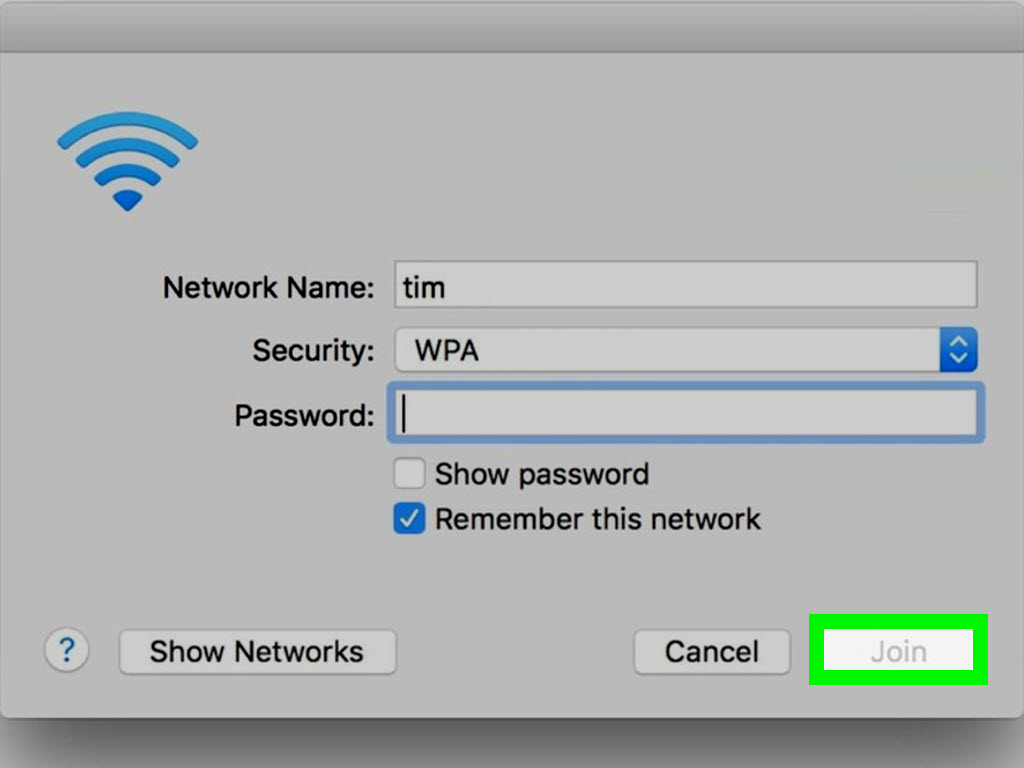
On a Mac, wireless networks are available from the Wi-Fi menu in the menu bar or Control Center.
Steps for macOS
- Click Control Center or the Wi-Fi icon in the menu bar.
- Turn Wi-Fi on if it is disabled.
- Select your network under the available Wi-Fi networks.
- Enter the password when prompted.
- Click Join.
Alternatively, open Apple menu > System Settings > Wi-Fi. This screen is useful when you need to review known networks, adjust automatic connection behavior, or forget an old network.
Joining a Hidden Network on Mac
A hidden network does not advertise its SSID. To join one, choose Other Networks and then Other. Enter the exact network name, select the correct security type, and supply the password.
Hiding an SSID is not a strong security measure by itself. Your home router should still use WPA2 or, preferably, WPA3 encryption with a strong password.
Way 3: Connect an iPhone or iPad to Wi-Fi
Apple places the primary wireless controls in the Settings app. The same general instructions apply to current iPhone and iPad models.
Steps for iPhone and iPad
- Open Settings.
- Tap Wi-Fi.
- Turn Wi-Fi on and wait for nearby networks to appear.
- Tap the correct network name.
- Enter the Wi-Fi password and tap Join.
A checkmark beside the network and a Wi-Fi symbol in the status area indicate that the device has connected. A lock symbol beside an SSID means the network requires authentication.
Use Apple Wi-Fi Password Sharing
If another nearby iPhone, iPad, or Mac is already connected, its owner may be able to share the password without reading it aloud. Both devices should have Wi-Fi and Bluetooth enabled, be signed in to their Apple Accounts, and have the relevant contact information saved.
On the new device, select the network. A Share Password prompt should appear on the connected Apple device. Approve it, and the new device joins automatically. This neatly prevents the traditional family ritual of shouting a 20-character password across three rooms.
Way 4: Connect an Android Device or Chromebook
Android menus vary among Google Pixel, Samsung Galaxy, Motorola, and other manufacturers. The controls are generally located under Network, Connections, or Internet settings.
Connect an Android Phone or Tablet
- Open Settings.
- Tap Network & internet > Internet. On some phones, choose Connections > Wi-Fi.
- Turn Wi-Fi on.
- Select the desired network.
- Enter the password and tap Connect.
You can also swipe down from the top of the screen, press and hold the Internet or Wi-Fi control, and select a network from the panel.
Many Android devices can share saved Wi-Fi credentials as a QR code. Open the connected network’s settings, tap Share, authenticate with your PIN or biometric security, and let the other device scan the displayed code.
Connect a Chromebook
- Select the time in the lower-right corner.
- Choose the network or Wi-Fi control.
- Turn Wi-Fi on if necessary.
- Select the network name.
- Enter the password and choose Connect.
Managed school or business networks may request an identity, certificate, EAP method, or administrator-provided login. Do not guess these values; obtain the correct settings from the organization.
Way 5: Connect Using QR Codes, WPS, or a Mobile Hotspot
Typing a password is the standard method, but it is not the only way to establish a wireless internet connection.
Scan a Wi-Fi QR Code
A Wi-Fi QR code can contain the SSID, security type, and password. Open the camera or QR scanner on a supported phone, tablet, or computer, point it at the code, and approve the connection prompt.
QR codes are particularly useful for guest networks and long passwords. Only scan codes supplied by the network owner; a random sticker placed over a legitimate code could direct you to an impostor network or website.
Use the WPS Push Button
Wi-Fi Protected Setup, or WPS, can connect compatible devices without manually entering a password. It is most commonly used with printers, smart televisions, range extenders, and older home networking equipment.
- Place the device close to your router.
- Start the WPS connection process on the device.
- Press the router’s physical WPS button.
- Wait for the router and device to complete pairing.
The connection window commonly remains open for only a short period. Use push-button WPS only on a router you control. Many newer phones and routers omit WPS, so use a password or QR code when it is unavailable.
Connect to a Phone’s Mobile Hotspot
A mobile hotspot shares a phone’s cellular data connection over Wi-Fi. On an iPhone, open Settings > Personal Hotspot. On Android, look under Settings > Network & internet > Hotspot & tethering, although menu names vary.
Turn the hotspot on, create a strong password, and note its network name. On the second device, open the Wi-Fi list, choose the phone’s hotspot, and enter the password.
Tethering can consume cellular data quickly and drain the phone’s battery. Some carriers limit hotspot availability, speed, or monthly usage, so check your plan before treating your phone like a miniature internet service provider.
How to Connect Safely to Public Wi-Fi
Hotels, airports, libraries, and coffee shops often provide public wireless internet. Before connecting, ask an employee or check official signage for the exact network name. Attackers can create look-alike SSIDs such as “Hotel_Guest” or “Hotel_Guests” and hope tired travelers choose the wrong one.
After selecting the network, open a browser if a sign-in page does not appear automatically. You may need to accept terms, enter a room number, or provide an access code through a captive portal.
- Prefer websites that use HTTPS and display a valid lock indicator.
- Keep the operating system, browser, and security software updated.
- Turn off file sharing and avoid making your device discoverable.
- Disable automatic connection to open networks.
- Use cellular data or a personal hotspot for especially sensitive work when practical.
- Use a trusted VPN when required by your employer or organization.
- Forget the public network after you finish using it.
Modern website encryption offers meaningful protection, but public Wi-Fi should still be treated as an untrusted environment. The network may be legitimate while another person using it is considerably less charming.
What to Do When Wi-Fi Will Not Connect
1. Determine Whether the Problem Is the Device or Network
Try the same network on another phone or computer. If every device fails, the router, modem, or internet service is probably responsible. If only one device fails, concentrate on that device’s settings.
2. Check the Simple Controls
Confirm that Wi-Fi is on and Airplane Mode is off. If your laptop has a physical wireless switch or keyboard shortcut, make sure it has not been pressed accidentally.
3. Forget and Rejoin the Network
Remove the saved Wi-Fi profile, select the network again, and carefully reenter the password. This often resolves problems caused by a changed password or damaged saved configuration.
4. Restart the Equipment
Restart the affected device. If you manage the home network, restart the modem and router according to the manufacturer’s or internet provider’s instructions. Allow the equipment enough time to reconnect fully before testing again.
5. Improve Signal Strength
Move closer to the router and reduce physical obstacles. A 2.4 GHz signal generally travels farther and passes through walls better, while 5 GHz usually offers higher speeds at shorter distances. A modern mesh Wi-Fi system may improve coverage in a large or unusually shaped home.
6. Look for a Captive Portal
If the device says it is connected but websites will not load, open a browser. Public networks may require an additional sign-in or terms-and-conditions screen before granting internet access.
7. Update Software and Router Firmware
Install current operating-system updates and approved wireless adapter drivers. Home router firmware should also be kept current because updates may correct connectivity problems and security weaknesses.
8. Use Network Reset as a Last Resort
Windows, Android, iOS, and macOS offer options to reset network settings. This can resolve persistent configuration problems, but it may remove saved networks, VPN settings, and other preferences. Record anything important before pressing the digital equivalent of “start over.”
Choosing the Best Home Wi-Fi Settings
Use WPA3 Personal encryption when every important device supports it. WPA2 Personal remains an appropriate compatibility option for older equipment. Avoid outdated WEP security and unsecured home networks.
Create a strong, unique Wi-Fi password and replace the router’s default administrator credentials. The administrator password controls the router itself; the Wi-Fi password allows devices to join the wireless network. They serve different purposes and should not be identical.
Place the router in an open, central, elevated location. Closets, metal cabinets, thick masonry, and placement at the far end of a home can weaken coverage. A guest network can keep visitors and less-trusted smart devices separated from primary computers and storage devices.
Real-World Wireless Connection Experiences and Lessons
Wireless connection problems often look more complicated than they are. Consider a common home-office scenario: a laptop suddenly rejects a password that worked yesterday. Reentering it five times changes nothing except the owner’s vocabulary. A phone still connects normally, proving that the internet service and router are functioning. Forgetting the saved network on the laptop and joining again fixes the problem because the router password had recently changed, while the computer retained the old credentials.
The useful lesson is to divide the problem into two categories. If one device fails, inspect that device. If everything fails, inspect the network equipment or service. This single comparison can prevent an hour of changing settings that were never broken.
Another familiar experience happens in hotels. A laptop displays “Connected, no internet,” even though the signal is strong. The Wi-Fi connection itself is working; internet access is waiting behind a captive portal. Opening a browser reveals the hotel’s sign-in page. After accepting the terms and entering the access code, the internet begins working immediately. Signal strength and internet authorization are related, but they are not the same thing.
Distance creates subtler confusion. A video call may work perfectly in the room containing the router but freeze in a back bedroom. Restarting the computer will not move radio waves through three walls and a refrigerator. Testing beside the router helps identify coverage as the real issue. Switching to 2.4 GHz, repositioning the router, or adding a properly located mesh access point may produce a lasting improvement.
Password sharing is another small feature with an outsized practical benefit. A long, random password is excellent for security but terrible for party guests attempting to distinguish an uppercase “I” from a lowercase “l.” A QR code or built-in Apple or Android sharing feature transfers the credentials accurately without weakening the password for convenience.
Mobile hotspots are valuable during outages and travel, but they come with tradeoffs. A laptop performing cloud backups or installing updates can consume far more data than expected. Before connecting, pause large downloads, mark the connection as metered when the operating system supports it, and plug the phone into power. The hotspot should also have its own strong password; leaving it open turns a personal data plan into a neighborhood charity.
Finally, public Wi-Fi requires a different mindset from home Wi-Fi. The easiest network to join is not automatically the correct one. Verifying the SSID with staff takes seconds and avoids convincing look-alikes. For routine browsing, encrypted websites provide substantial protection. For confidential business systems, financial activity, or sensitive personal records, cellular service or an employer-approved secure connection may be the better choice.
Across these experiences, the most reliable approach remains wonderfully unglamorous: verify the network name, confirm the password, test another device, move closer, and restart only the equipment that may actually be involved. Wi-Fi troubleshooting rewards calm observation more than frantic button pressing.
Conclusion
Learning how to connect to a wireless internet connection is mostly a matter of locating the Wi-Fi controls, selecting the correct SSID, and supplying valid credentials. Windows, macOS, iOS, Android, and ChromeOS organize their menus differently, but the underlying process is consistent.
QR codes, password sharing, WPS, and mobile hotspots provide convenient alternatives when manual entry is impractical. Whatever method you choose, verify unfamiliar networks, use modern encryption at home, and troubleshoot methodically. Your router may have blinking lights and mysterious antennas, but it is not performing sorceryprobably.
SEO Metadata

