
Makeup
How to Completely Remove FACEIT from Your Computer
Jun
Uninstalling FACEIT should be as simple as clicking one button and waving goodbye. In practice, however, FACEIT may leave behind a desktop client, an anti-cheat component, cached files, startup entries, logs, and a driver that does not fully disappear until Windows restarts.
That does not mean FACEIT is secretly building a vacation home inside your computer. It means the regular FACEIT client and FACEIT Anti-Cheat perform different jobs and may be installed as separate Windows programs. Removing only one can leave the other sitting comfortably in the background.
This guide explains how to completely remove FACEIT from a Windows 10 or Windows 11 computer. You will uninstall the client and anti-cheat, delete remaining folders, check for services and startup entries, verify that the driver is gone, and handle stubborn removal problems without recklessly attacking the Windows Registry with a digital machete.
What Does “Completely Remove FACEIT” Mean?
A complete FACEIT removal may involve several separate actions:
- Closing the FACEIT client and anti-cheat processes.
- Uninstalling FACEIT Anti-Cheat.
- Uninstalling the FACEIT desktop client.
- Restarting Windows to unload the anti-cheat driver.
- Removing leftover application folders, caches, logs, and shortcuts.
- Checking that no FACEIT service or startup entry remains.
Deleting the software does not automatically delete your online FACEIT account, disconnect your Steam ID, cancel an active subscription, or erase information stored on FACEIT’s servers. Those are account-management tasks rather than software-removal tasks.
Before You Uninstall FACEIT
Decide Whether You Need Removal or Temporary Deactivation
If you merely want the anti-cheat driver to stop running temporarily, look for the FACEIT Anti-Cheat icon in the system tray. Current versions may provide a Disable Driver option. This unloads and deactivates the driver without uninstalling the program. Restarting the computer enables it again when you need to play protected FACEIT matches.
Use the full procedure below when you are troubleshooting conflicts, no longer use FACEIT, want to reclaim storage, or need to ensure that its service and driver are no longer installed.
Save Anything You Want to Keep
Review locally stored highlights, recordings, screenshots, configuration files, and logs before deleting leftover folders. Most account information is associated with your online profile, but locally generated media may exist only on your computer.
Create a Restore Point for Advanced Cleanup
The ordinary uninstall steps are low risk. A restore point becomes useful if you plan to inspect services, remove locked driver files, or edit the Registry.
- Open the Start menu and search for Create a restore point.
- Select your Windows system drive.
- Click Create.
- Name the restore point something memorable, such as Before FACEIT removal.
This gives Windows a safety net in case an enthusiastic cleanup session removes something it should not.
Step 1: Close FACEIT and Its Related Processes
Do not begin while FACEIT, Counter-Strike 2, Steam, or another related game is running. Open applications can lock files and prevent the uninstaller from removing them.
- Exit any active FACEIT match.
- Close the FACEIT desktop client.
- Right-click the FACEIT or FACEIT Anti-Cheat icon in the system tray and choose Exit when that option is available.
- Press Ctrl + Shift + Esc to open Task Manager.
- Under Processes, look for entries clearly labeled FACEIT, FACEIT Client, or FACEIT Anti-Cheat.
- Select each confirmed FACEIT process and click End task.
Process names can change between releases, so use the publisher and file location to confirm an entry before closing it. Do not end a mysterious Windows process merely because it looked at you funny.
Step 2: Uninstall FACEIT Anti-Cheat
Remove the anti-cheat component first because it may install a background service and kernel-level driver.
Using Windows 11 Settings
- Press Windows + I.
- Select Apps.
- Open Installed apps.
- Search for FACEIT.
- Find FACEIT Anti-Cheat.
- Click the three-dot menu and select Uninstall.
- Approve the User Account Control prompt if it appears.
- Follow the removal wizard to completion.
Using Windows 10 Settings
- Open Settings.
- Select Apps.
- Open Apps & features.
- Select FACEIT Anti-Cheat.
- Click Uninstall.
Using Control Panel
If the Settings app does not show the anti-cheat, press Windows + R, type appwiz.cpl, and press Enter. Find FACEIT Anti-Cheat in Programs and Features, right-click it, and select Uninstall.
Step 3: Uninstall the FACEIT Desktop Client
Return to the installed-app list and locate the regular FACEIT client. Depending on the release, it may appear as FACEIT, FACEIT Client, or a similar name.
- Select the FACEIT client entry.
- Choose Uninstall.
- Complete the removal wizard.
- Check the installed-app list again for another FACEIT entry.
Some users uninstall the desktop client and assume the job is finished, only to discover that FACEIT Anti-Cheat is still installed. Others remove the anti-cheat but leave the client behind. Search the list one final time so neither half escapes through the kitchen window.
Step 4: Restart Your Computer
A restart is essential when removing anti-cheat software. Closing an application stops an ordinary process, but a driver loaded by Windows may remain active until the operating system reboots.
Save your work and select Start > Power > Restart. Do not skip this step simply because the FACEIT icon has disappeared. The restart is what allows Windows to release locked files, unload the driver, and finish pending deletions.
Step 5: Delete Remaining FACEIT Folders
After restarting, check the common installation and application-data locations below. A particular folder may not exist on your system, especially if the uninstaller already removed it.
Check Program Files
Open File Explorer and inspect these locations:
C:\Program Files\FACEIT ACC:\Program Files\FACEIT ClientC:\Program Files (x86)\FACEIT
Delete a folder only when its name and contents clearly belong to FACEIT. Empty the Recycle Bin afterward if you want the storage recovered immediately.
Check Local AppData
- Press Windows + R.
- Type
%localappdata%. - Press Enter.
- Look for folders named FACEIT or FACEITApp.
- Delete confirmed FACEIT folders.
FACEIT client versions have commonly stored application files, caches, update packages, logs, and resources in the user’s Local AppData directory. Removing these leftovers is especially helpful when you are performing a clean uninstall before reinstalling FACEIT.
Check Roaming AppData
- Press Windows + R.
- Type
%appdata%. - Press Enter.
- Look for a clearly labeled FACEIT folder.
- Delete it if you no longer need its settings.
Do not delete the entire AppData directory. That folder contains settings and data for many programs. Removing all of it to eliminate one application is roughly equivalent to demolishing a house because a cereal box is empty.
Step 6: Remove Shortcuts and Startup Entries
Delete Remaining Shortcuts
Remove FACEIT shortcuts from the desktop, Start menu, and taskbar. A pinned taskbar icon may remain after the underlying application has been uninstalled. Right-click it and choose Unpin from taskbar.
Check Startup Apps
- Open Task Manager.
- Select Startup apps.
- Look for an entry clearly associated with FACEIT.
- If a leftover entry exists, right-click it and select Disable.
A disabled orphaned entry is usually harmless. If it disappears after another restart, Windows has completed its cleanup. If it persists, use an uninstaller troubleshooter rather than deleting random startup keys.
Step 7: Verify That the FACEIT Service Is Gone
- Press Windows + R.
- Type
services.msc. - Press Enter.
- Search for a service whose name or description clearly references FACEIT.
If no FACEIT service appears, continue to the next step. If one remains, restart Windows once more and check again. A service can temporarily be marked for deletion while another process still holds it open.
Avoid manually deleting the service unless you have confirmed its exact service name and received reliable technical guidance. The safer remedies are to run the official uninstaller again, use Microsoft’s installation-removal troubleshooter, or reinstall FACEIT and then uninstall it cleanly.
Optional Command-Line Verification
Advanced users can open Terminal or Command Prompt as an administrator and run:
No matching output generally means Windows does not currently list a FACEIT service or driver. These commands are for inspection only; they do not remove anything.
Step 8: Handle a Locked or Problematic Anti-Cheat Driver
Most people should never need this section. Use it when a FACEIT driver remains locked, the computer crashes during startup, or a blue-screen error prevents a normal uninstall.
Enter Safe Mode
- Open Settings > System > Recovery in Windows 11.
- Next to Advanced startup, click Restart now.
- Select Troubleshoot > Advanced options > Startup Settings.
- Click Restart.
- Press 4 or F4 to start Safe Mode.
In Windows 10, Advanced startup is available under Settings > Update & Security > Recovery.
Remove the Driver File Only When Necessary
In Safe Mode, open:
FACEIT support documentation has identified anti-cheat driver filenames such as FACEIT_AC.sys or, in older versions, FACEIT.sys. If the ordinary uninstaller has failed and the confirmed FACEIT driver is preventing Windows from starting normally, delete that specific file and reboot.
Do not delete other .sys files. They may control storage, networking, graphics, or other essential hardware. A filename ending in .sys is not an invitation to spring-clean the operating system.
Step 9: Clean the Registry Only If a Confirmed Entry Remains
Registry editing is optional. A few harmless configuration entries do not mean FACEIT is still running, and deleting the wrong key can cause considerably more trouble than leaving a tiny unused setting behind.
If you have a specific reason to remove a confirmed FACEIT key:
- Press Windows + R.
- Type
regeditand press Enter. - Select File > Export to create a backup.
- Use Edit > Find and search for FACEIT.
- Inspect the key path, publisher, values, and context.
- Delete only keys that unquestionably belong to the removed FACEIT installation.
Do not automatically delete every search result. A match could be a recent-file reference, browser record, uninstall history entry, or text stored by another program. Complete removal does not require turning Registry Editor into a competitive clicking game.
What to Do If FACEIT Will Not Uninstall
Close It Through Task Manager
An active FACEIT process may be holding its own files open. End confirmed FACEIT processes and run the uninstaller again as an administrator.
Use the Microsoft Program Troubleshooter
Microsoft provides a Program Install and Uninstall troubleshooter for damaged installer records, missing uninstall data, and programs that refuse to be removed. Run it, choose the uninstalling option, and select the relevant FACEIT entry when shown.
Reinstall and Then Uninstall
If the uninstaller itself is missing or corrupted, download the current installer from the official FACEIT website. Install it over the existing copy, restart Windows, and then repeat the standard uninstall procedure. This often restores missing installer information.
Use a Reputable Third-Party Uninstaller Carefully
A recognized uninstaller utility can scan for leftover files and Registry entries after running the program’s normal removal routine. Create a restore point first, download the tool from its official publisher, and review every proposed deletion instead of accepting the entire list with heroic confidence.
Use Safe Mode for Locked Files
Safe Mode loads only essential Windows components, which can prevent a damaged third-party service or driver from locking its files. Try the standard uninstall again in Safe Mode before resorting to manual deletion.
How to Confirm FACEIT Has Been Completely Removed
After the final restart, use this checklist:
- FACEIT and FACEIT Anti-Cheat no longer appear under Installed apps.
- No FACEIT process appears in Task Manager.
- No FACEIT startup entry is enabled.
- No FACEIT service or driver appears in the verification checks.
- The FACEIT AC directory is gone from Program Files.
- FACEIT and FACEITApp folders are gone from Local AppData.
- No FACEIT shortcut remains on the desktop, Start menu, or taskbar.
If every item checks out, FACEIT has been removed from the computer. You do not need to delete unrelated game files, uninstall Steam, reset Windows, or conduct an exorcism involving RGB lighting.
Does Uninstalling FACEIT Delete Your Account?
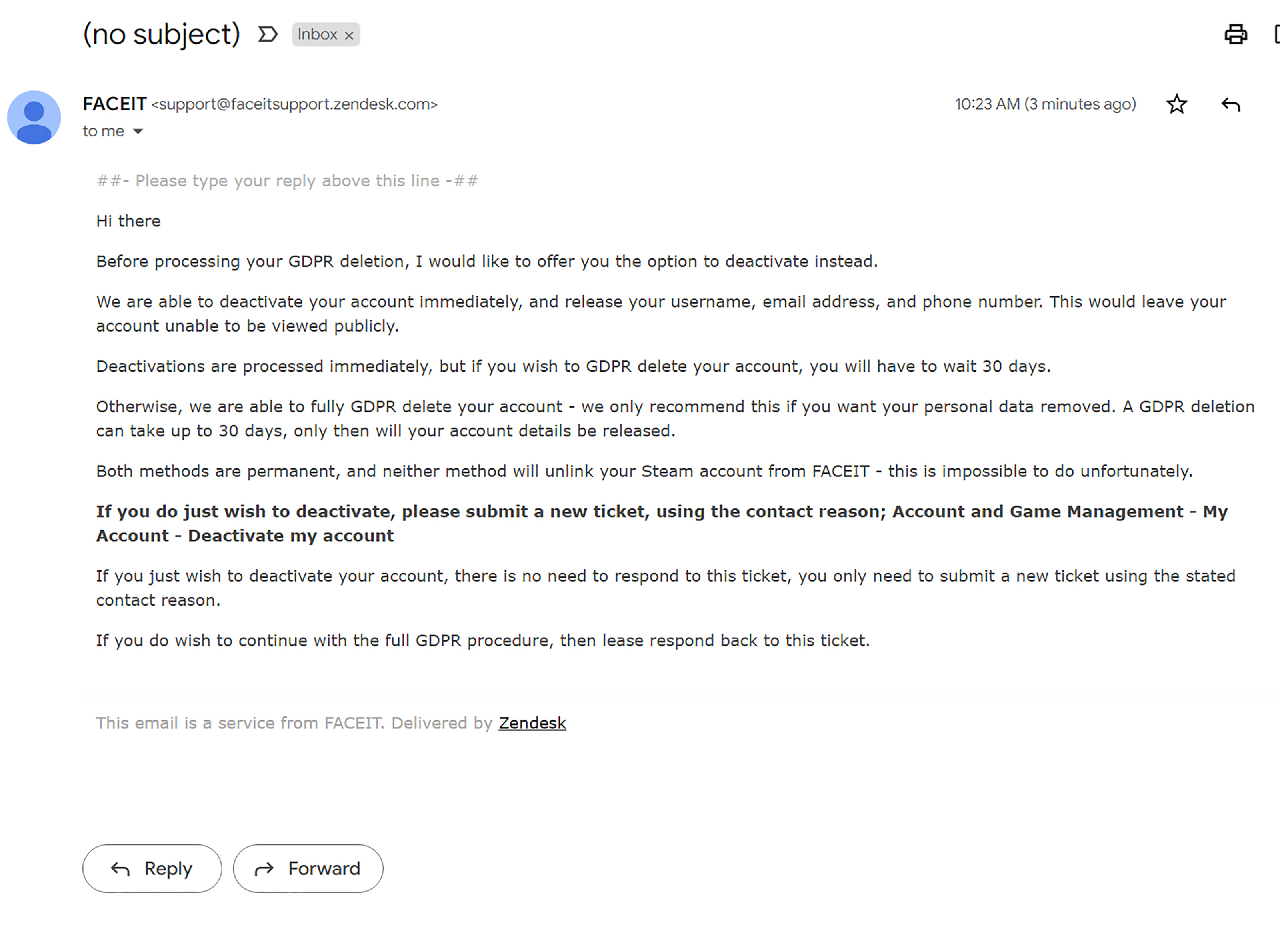
No. Removing the client and anti-cheat affects only the local Windows installation. Your FACEIT profile remains online until you separately deactivate or delete it.
FACEIT account deletion can be initiated through the account settings while signed in. The platform currently applies a waiting period before final deletion, and logging back in during that period may cancel the request. Account policies may also restrict when another account can be created, and a connected Steam ID may not become available for reuse.
Read the current account-deletion and deactivation policies carefully before proceeding. Uninstalling a program is reversible; permanently deleting a competitive gaming account is a rather more committed breakup.
Frequently Asked Questions
Why is FACEIT still running after I uninstalled the client?
You may have removed the desktop client without uninstalling FACEIT Anti-Cheat. Return to Installed apps and search for every entry containing FACEIT. Restart Windows after removing the anti-cheat so its driver can unload.
Can I delete the FACEIT AC folder manually?
Run the official uninstaller first. Manual deletion should be limited to confirmed leftovers after a restart or to the specific driver-recovery procedure recommended when a damaged FACEIT driver prevents Windows from starting.
Will removing FACEIT affect Counter-Strike 2?
It does not normally uninstall or delete Counter-Strike 2. However, you will no longer be able to join FACEIT matches that require its anti-cheat until you reinstall the necessary software.
Why does Windows say a FACEIT file is in use?
A FACEIT process, service, or driver may still be loaded. Close the client, end confirmed FACEIT tasks, restart the computer, and try again. Use Safe Mode if the file remains locked.
Do I need a Registry cleaner?
No. The ordinary uninstaller, a restart, and manual removal of confirmed folders are sufficient for most computers. Registry cleaners are optional and can create new problems when used carelessly.
Removal Experiences: What Users Commonly Encounter
The most common FACEIT removal experience begins with a deceptively successful uninstall. The client vanishes from the Start menu, the desktop shortcut stops working, and everything appears finished. After the next boot, however, the user notices FACEIT Anti-Cheat still listed under Installed apps or sees a FACEIT-related background process in Task Manager. The lesson is simple: the client and anti-cheat must be checked separately.
Another frequent scenario involves a user uninstalling both components but immediately searching Program Files and finding the FACEIT AC folder still present. This can happen because a service or driver still has an open handle to a file. After restarting Windows, the folder is often unlocked or automatically removed. Restarting before manually deleting anything saves time and reduces the chance of wrestling with permissions for no reason.
A third situation occurs during troubleshooting for another game. A player experiences crashes, launch errors, or an incompatibility warning and removes FACEIT Anti-Cheat to test whether it is involved. The best approach is controlled rather than dramatic: note the original symptoms, uninstall the anti-cheat, restart, and test the affected game again. If the problem remains unchanged, the anti-cheat may not have been the cause. This prevents an assumption from becoming a three-hour expedition through every Windows folder.
Some users encounter an uninstall entry that does nothing. Clicking it produces a brief loading cursor, an error message, or absolutely nothingthe software equivalent of pretending not to hear the doorbell. In many cases, reinstalling the current FACEIT package repairs the damaged uninstall information. The user can then remove the restored installation normally. Microsoft’s program troubleshooter is another useful option when the installer database is corrupted.
The most stressful experience is a blue screen or startup loop associated with a damaged anti-cheat driver. Here, ordinary Windows operation may be impossible. Safe Mode becomes valuable because it loads a reduced set of drivers. Once in Safe Mode, the user can inspect the official FACEIT AC directory and remove the confirmed FACEIT driver file when that step is appropriate. Careful filename verification matters enormously; deleting arbitrary system drivers can transform a recoverable FACEIT problem into a Windows problem.
Users also occasionally confuse software removal with account deletion. They uninstall every local component, clear AppData, and then discover that their FACEIT profile is still visible online. This is expected. A local uninstallation does not erase server-side information or release a connected Steam ID. Anyone seeking a true departure from the platform must separately review subscription, deactivation, deletion, verification, and account-reuse policies.
Finally, the cleanest removals tend to share the same pattern: close everything, uninstall both entries, restart, remove confirmed leftovers, and verify rather than guess. The process is rarely difficult when completed in that order. Problems usually arise when a user skips the reboot, starts by deleting program folders, or removes Registry keys before giving the official uninstallers a chance to do their jobs.
Conclusion
To completely remove FACEIT from your computer, treat the desktop client and FACEIT Anti-Cheat as separate components. Close their processes, uninstall both Windows entries, restart the computer, and then remove confirmed folders from Program Files and AppData. Check Task Manager and Windows Services afterward to verify that nothing remains active.
Safe Mode and manual driver removal should be reserved for unusual cases such as locked files, failed uninstalls, or startup crashes. Registry cleanup is optional and should always be preceded by a backup. A careful sequence produces a cleaner result than randomly deleting every file containing the word “FACEIT”and is far less likely to make Windows respond with interpretive blue-screen art.
Note: FACEIT and Windows interfaces may change between releases. Always use the official uninstall option first, restart before deleting leftovers, and never remove an unidentified service, driver, or Registry key.

