
Skincare
How to Unlock Your MacBook Pro without a Password: 5 Options
Jul
Forgetting your MacBook Pro password feels a lot like locking yourself out of your own house while the lights, coffee maker, and entire digital life are still running inside. The good news is that Apple gives legitimate owners several safe ways to regain access. The less-good news? Your MacBook Pro is not a movie safe where you whisper “I am the chosen one” and the vault opens. Modern Macs are built around encryption, Apple Account protection, FileVault, Activation Lock, and secure startup tools. That is excellent for thieves and snoops staying out. It is slightly less excellent when the forgetful person is you.
This guide explains how to unlock your MacBook Pro without a password using five real, Apple-supported options. Some methods help you sign in again without typing the forgotten password. Others reset the login password. The final option erases the Mac and restores your files from backup. None of these are shady “bypass” tricks, because shady tricks are how people end up with malware, a bricked Mac, or a dramatic conversation with Apple Support.
Before you begin, make sure the MacBook Pro is yours or you have clear permission to manage it. If the Mac belongs to your company, school, or someone else, contact the administrator. A locked MacBook Pro is doing its job; the goal is recovery, not sneaking through a digital dog door.
Before You Try Anything: Know What Kind of Lock You Are Facing
Not every “locked Mac” problem is the same. Choosing the right fix depends on what the screen is asking for.
Login Password
This is the password for your macOS user account. It appears on the login screen after startup, restart, sleep, or screen lock. Most people searching for “forgot MacBook Pro password” are dealing with this.
Apple Account Password
Your Apple Account password is used for iCloud, Find My, App Store purchases, password reset options, and account recovery. It may help you reset your Mac login password, but it is not always the same password.
FileVault Recovery Key
If FileVault disk encryption is enabled, your Mac may allow a password reset using a recovery key. This key is usually created when FileVault is turned on. It is powerful, useful, and about as fun to lose as a passport the night before a flight.
Activation Lock
Activation Lock is tied to Find My and the Apple Account associated with the Mac. If your Mac asks for the Apple Account used to set it up, you generally cannot skip that screen. You need the correct Apple Account credentials, proof of ownership through Apple, or the original owner to remove the device from their account.
Option 1: Use Touch ID or Apple Watch Unlock
Best for: You already set up Touch ID or Apple Watch unlock before forgetting the password.
If your MacBook Pro has Touch ID, try placing your registered finger on the Touch ID sensor at the login screen. If you use an Apple Watch, wake your Mac while wearing the unlocked watch. In everyday use, these features can feel like magic: your Mac opens, your coffee tastes better, and you briefly believe technology loves you back.
There is one important catch. After a restart, shutdown, log out, major security change, or certain time intervals, macOS may require the actual login password before Touch ID or Apple Watch unlock works again. That means this option is fantastic when your Mac is asleep or locked, but it may not help after a reboot.
How to Try It
- Wake your MacBook Pro.
- Try Touch ID with a registered finger.
- If Apple Watch unlock was enabled, make sure the watch is on your wrist, unlocked, nearby, and connected.
- If macOS says a password is required, move to another option below.
When This Option Works Well
This is the easiest way to unlock a MacBook Pro without typing a password, but only if biometric or watch unlock was set up earlier. It is not a password reset method. Think of it as a spare key you had to make before locking yourself out.
Option 2: Reset the Password with Your Apple Account
Best for: Your Mac login account is connected to your Apple Account and the reset option appears at the login window.
Many MacBook Pro users can reset their login password directly from the login screen. After entering the wrong password several times, macOS may show a message such as “Reset it using your Apple Account” or a question mark icon near the password field. If you see that, congratulations: the Mac has opened a polite little recovery door.
Steps to Reset with Apple Account
- At the login screen, enter any password a few times until reset options appear.
- Choose the option to reset using your Apple Account.
- Enter the Apple Account email or phone number and password connected to the Mac.
- Follow the on-screen prompts to create a new Mac login password.
- Restart and sign in with the new password.
After resetting the password, macOS may create a new login keychain because the old keychain was protected by the old password. In plain English: your Mac may let you in, but some saved passwords may need to be re-entered. This is normal. Annoying, yes, but normal.
Common Problems
If you do not remember your Apple Account password, reset that first through Apple’s account recovery process. If your Mac is offline, connect to Wi-Fi from the login or recovery screen if available. If the reset option never appears, try macOS Recovery instead.
Option 3: Use the FileVault Recovery Key
Best for: FileVault is enabled and you saved the recovery key somewhere safe.
FileVault encrypts your MacBook Pro’s startup disk so your data is protected if the device is lost or stolen. When FileVault is turned on, macOS may create a recovery key. If you still have that key, it can help you reset the forgotten login password.
The recovery key is usually a long string of letters and numbers. It does not look friendly. It looks like a Wi-Fi password got into a fight with a license plate. But if you have it, treat it like gold.
Steps to Use a FileVault Recovery Key
- At the login screen, enter the wrong password until reset options appear.
- Choose the option to reset using a recovery key.
- Enter the FileVault recovery key exactly as shown, including capital letters and hyphens if required.
- Create a new login password.
- Restart the Mac and sign in.
Where You Might Find the Recovery Key
Check your password manager, printed emergency documents, secure notes, iCloud Keychain-related records, or device-management documentation if the Mac is used for work. Some newer Apple guidance also supports viewing certain FileVault recovery key information in the Passwords app on trusted Apple devices signed in to the same Apple Account, depending on setup.
If you cannot find the recovery key and cannot use your Apple Account, move to Recovery options or consider erasing the Mac.
Option 4: Reset the Password from macOS Recovery
Best for: The login screen reset option is not available, but you can access macOS Recovery.
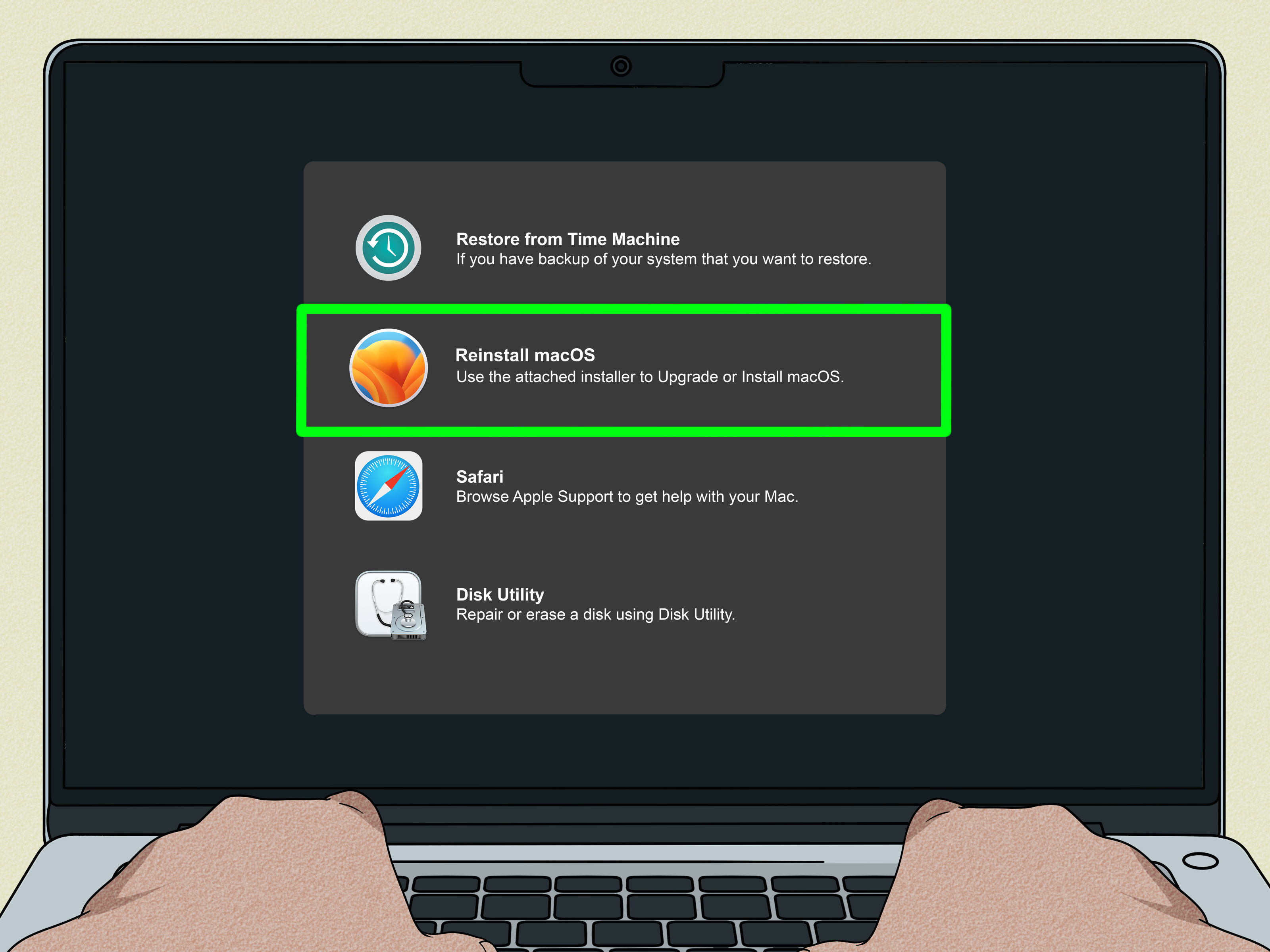
macOS Recovery is the built-in rescue area for your Mac. It can reinstall macOS, run Disk Utility, restore from backup, and in many cases help reset a forgotten login password. This is one of the most useful methods for unlocking a MacBook Pro when the regular login screen refuses to cooperate.
How to Start macOS Recovery on Apple Silicon MacBook Pro
- Shut down the MacBook Pro.
- Press and hold the power button.
- Keep holding until startup options appear.
- Click Options, then click Continue.
- Select a volume or user if asked, then continue.
How to Start macOS Recovery on Intel MacBook Pro
- Shut down the MacBook Pro.
- Turn it on and immediately press and hold Command + R.
- Release the keys when you see the Apple logo, spinning globe, or recovery screen.
- Connect to Wi-Fi if prompted.
How to Reset the Password in Recovery
- In Recovery, look for Recovery Assistant or password reset options.
- If needed, open the menu bar and choose Utilities, then Terminal.
- Type resetpassword and press Return.
- Follow the Reset Password Assistant instructions.
- Create a new password and restart the Mac.
This method may require your Apple Account, FileVault recovery key, or another authorized credential. Apple designs macOS Recovery to help owners recover access without turning security into wet cardboard. If the Mac is protected by Activation Lock, you still need the correct Apple Account credentials.
Option 5: Erase the MacBook Pro and Restore from Backup
Best for: You cannot reset the password, but you own the Mac and have a backup or are willing to start fresh.
Erasing your MacBook Pro is the “big red button” option. It removes the data on the Mac and lets you reinstall macOS. This can get the computer usable again, but it is not gentle. If your files are not backed up, they may be gone. Your photos, documents, downloads, unfinished novel, and mysterious folder called “Final_Final_Actually_Final” may vanish into the digital fog.
When Erasing Makes Sense
- You cannot reset the login password with Apple Account recovery.
- You do not have the FileVault recovery key.
- The Mac has no other administrator account available.
- You have a Time Machine backup, iCloud sync, or another copy of important files.
- You are preparing the Mac for resale or a clean start.
Basic Erase-and-Reinstall Path
- Start the Mac in macOS Recovery.
- Use the erase option available for your Mac model and macOS version.
- Erase the internal startup disk or use Erase Assistant if available.
- Reinstall macOS.
- During setup, restore from Time Machine or sign in to iCloud to recover synced data.
On Apple silicon and newer Intel Macs with a T2 security chip, Activation Lock may still appear after erasing if Find My was enabled. That is normal security behavior. You need the Apple Account that was previously used with the Mac, or official help from Apple with proof of purchase.
Bonus Option: Ask Another Administrator to Reset It
Although this article focuses on five main options, there is one simple possibility worth mentioning. If the MacBook Pro has another administrator account, that admin may be able to reset your user password in System Settings. This is common on family Macs, shared studio machines, or office devices.
The other administrator can sign in, open System Settings, go to Users & Groups, select your account, and choose the password reset option. Again, this may affect your login keychain, so you may need to re-enter some saved passwords later.
What Not to Do When Locked Out of a MacBook Pro
The internet is full of “unlock any Mac instantly” promises, many of which are about as trustworthy as gas-station sushi. Avoid random software claiming to bypass macOS security, remove Activation Lock, or crack FileVault encryption. These tools are risky, often ineffective, and may install malware. Worse, they can damage your macOS installation or expose personal data.
Also avoid buying “master passwords,” firmware unlock codes, or suspicious remote help from strangers. Apple does not design MacBook Pros with a universal secret password. If someone claims they have one, they are probably trying to unlock your wallet, not your computer.
How to Prevent This Problem Next Time
Once you regain access, take ten minutes to protect Future You. Future You is forgetful, busy, and likely drinking coffee over the keyboard again.
Set a Strong but Memorable Password
Use a password that is long and unique but easier to remember than a random keyboard sneeze. A passphrase works well, such as several unrelated words with numbers or punctuation.
Add a Password Hint
A good hint should help you remember without revealing the password to anyone nearby. “My password is Fluffy2026” is not a hint. It is a confession.
Save Recovery Information Securely
Store your FileVault recovery key in a password manager, a secure offline record, or another trusted place. Do not leave it in a sticky note labeled “SUPER SECRET MAC KEY” under the laptop.
Turn On Time Machine
Backups turn disasters into chores. Without a backup, erasing a locked Mac becomes painful. With a backup, it becomes inconvenient but survivable.
Keep Your Apple Account Updated
Make sure your trusted phone number, recovery contact, and account recovery options are current. If your Apple Account is your rescue rope, do not tie it to an old phone number from three apartments ago.
Real-World Experience: What Usually Happens When People Forget a MacBook Pro Password
In real life, unlocking a MacBook Pro without a password is rarely a single dramatic moment. It is usually a process of figuring out which recovery path the Mac is willing to offer. The most common situation is simple: the user has not truly forgotten the password forever. They have changed it recently, typed it with Caps Lock on, used the Apple Account password by mistake, or switched keyboard layouts without realizing it. Before doing anything drastic, it is worth slowing down and trying the obvious suspects. Check Caps Lock. Make sure the keyboard language is correct. If you use an external keyboard, disconnect it and try the built-in keyboard. Tiny details can create huge panic.
Another common experience is the “I know my password, but the Mac says no” problem. This can happen after a password change, migration, update, or long period of not using the computer. In these cases, Apple Account reset is often the smoothest fix. The user enters the Apple Account details, creates a new Mac password, and gets back in. The surprise comes afterward, when macOS may ask about the login keychain. That message sounds scary, but it usually means saved passwords were still protected by the old login password. You can often continue using the Mac and re-enter passwords as needed.
FileVault recovery keys are another story. People either have the key perfectly stored or have absolutely no idea where it went. There is rarely a middle ground. The best habit is to save the recovery key the same day FileVault is enabled. If you are reading this before disaster strikes, open your password manager and make a secure note. If you are reading this during disaster, check every trusted place where you store important codes: password apps, printed emergency folders, secure cloud notes, family admin records, or business IT documentation.
macOS Recovery is often the turning point. Many users are nervous entering Recovery because it feels like a technician-only zone, but Apple designed it for normal owners too. The key is to avoid random clicking. Read each screen carefully. If the Mac offers password reset, use it. If it asks for Apple Account credentials, enter the correct account. If it asks for a recovery key and you do not have one, do not guess endlessly. Too much guessing wastes time and increases frustration.
The erase-and-restore option is emotionally the hardest but technically straightforward. People fear it because “erase” sounds final, and sometimes it is. But with Time Machine, iCloud Photos, iCloud Drive, Dropbox, Google Drive, OneDrive, or another backup system, most data may be recoverable. The real lesson is boring but powerful: backups matter most on the day you least want to think about them. A MacBook Pro can be replaced, reinstalled, and reconfigured. Family photos, client projects, tax documents, and creative work are much harder to rebuild from memory.
From a practical standpoint, the smartest recovery order is: try Touch ID or Apple Watch if already enabled, check for login-screen reset options, use Apple Account recovery, try the FileVault recovery key, then go to macOS Recovery. Erase only when recovery fails or when you are comfortable starting fresh. This order saves time and reduces the chance of unnecessary data loss.
The biggest takeaway is that “unlock MacBook Pro without password” does not mean breaking into the computer. It means proving ownership through Apple-supported recovery methods. That distinction matters. Apple’s security is designed to protect your data from everyone, including a stranger who finds your laptop at an airport. The same protection can slow you down when you forget your own password, but it is also the reason your private files are not easy prey. Annoying today, comforting tomorrow.
Conclusion
There are several legitimate ways to unlock your MacBook Pro without typing the old password, but the right method depends on your setup. Touch ID and Apple Watch unlock are convenient if already enabled. Apple Account reset is often the easiest recovery path. A FileVault recovery key can save the day if you stored it safely. macOS Recovery gives you deeper reset tools, while erasing and restoring the Mac is the final option when everything else fails.
The best solution is prevention: keep your Apple Account recovery details updated, save your FileVault recovery key, enable backups, and use a password you can remember without making it obvious. Your MacBook Pro is built to protect your data. Work with that security, not against it, and you will recover access with fewer headaches and fewer desperate late-night searches.
Note: This guide is intended only for MacBook Pro owners or authorized administrators. It does not explain how to bypass Activation Lock, defeat FileVault encryption, or access someone else’s device.

