
Skincare
How to Cancel a Recurring Payment in PayPal: 7 Steps
Jul
If your PayPal account keeps paying for a subscription you forgot about, welcome to the modern economy, where free trials multiply faster than houseplants and somehow every app thinks it deserves your monthly devotion. The good news? Canceling a recurring payment in PayPal is usually simple once you know where to click. The better news? You do not need to perform ancient billing rituals under a full moon.
This guide walks you through exactly how to cancel a recurring payment in PayPal in 7 clear steps, explains what happens after you cancel, and covers the most common mistakes people make. We will also talk about what to do if the charge already went through, because timing matters a lot with automatic payments.
What Is a Recurring Payment in PayPal?
A recurring payment in PayPal is an automatic billing agreement that lets a merchant charge your PayPal account on a schedule without asking for permission every single time. Think streaming services, software subscriptions, donation plans, meal kits, online memberships, and the occasional app you downloaded during a burst of optimism in January.
In PayPal, these are often labeled as Automatic Payments, Subscriptions, or Linked Businesses, depending on the device and version of the interface you are using. They all point to the same basic idea: you previously authorized a seller to bill you again later.
Before You Cancel: Two Important Things to Know
1. Canceling stops future charges, not past ones
If a payment has already been completed, canceling the recurring agreement will not magically yank that money back into your wallet like a dramatic movie heist. It only prevents future automatic charges. For money already paid, you usually need to contact the seller for a refund or open a dispute if there is a billing problem.
2. Removing a card is not the same as canceling autopay
A lot of people assume they can just delete the linked card or switch the preferred payment method and call it a day. Not so fast. PayPal’s automatic payments often have their own assigned funding source, and changing your general preferred payment method does not necessarily cancel the billing agreement. If you want the recurring charge gone, cancel the agreement itself.
How to Cancel a Recurring Payment in PayPal: 7 Steps
These steps are based on the current PayPal website flow. The wording may vary slightly by account type or app version, but the path is essentially the same.
Step 1: Log in to Your PayPal Account
Go to your PayPal account and sign in from a desktop browser or mobile browser. Yes, you can often do this in the app too, but the website is still the clearest place to manage subscription settings when you want the full menu and fewer surprises.
Step 2: Open Settings
Look for the gear icon in the upper-right corner of the screen. Click it to open your account settings. This is the control room for your PayPal account, where hopes, dreams, and billing agreements all quietly live.
Step 3: Click “Payments”
Inside Settings, choose the Payments tab. This section is where PayPal keeps details for ongoing billing arrangements, payment methods, and merchant permissions.
Step 4: Select “Subscriptions and Saved Businesses” or “Automatic Payments”
Depending on your layout, you may see one of these labels:
- Subscriptions and saved businesses
- Automatic Payments
- Linked Businesses
Click the option that shows your recurring payment agreements. If the wording is slightly different, do not panic. PayPal changes labels more often than people change passwords.
Step 5: Choose the Merchant or Subscription You Want to Stop
You should now see a list of businesses authorized to charge your PayPal account automatically. Click the merchant name or subscription you want to cancel. This opens the billing details page for that specific recurring payment.
Double-check the merchant name before you proceed. Some charges appear under a parent company or payment processor name, which can make a familiar subscription look suspiciously mysterious.
Step 6: Click “Cancel,” “Stop Paying with PayPal,” or “Remove PayPal as Your Payment Method”
On the merchant details page, look for the cancellation option. The exact wording may vary, but it usually appears as one of these:
- Cancel
- Cancel Automatic Payments
- Stop Paying with PayPal
- Remove PayPal as your payment method
- Unlink
Click that option. If PayPal offers you the chance to change the payment method instead, make sure you do not accidentally update the billing source when your goal is to shut the whole thing down.
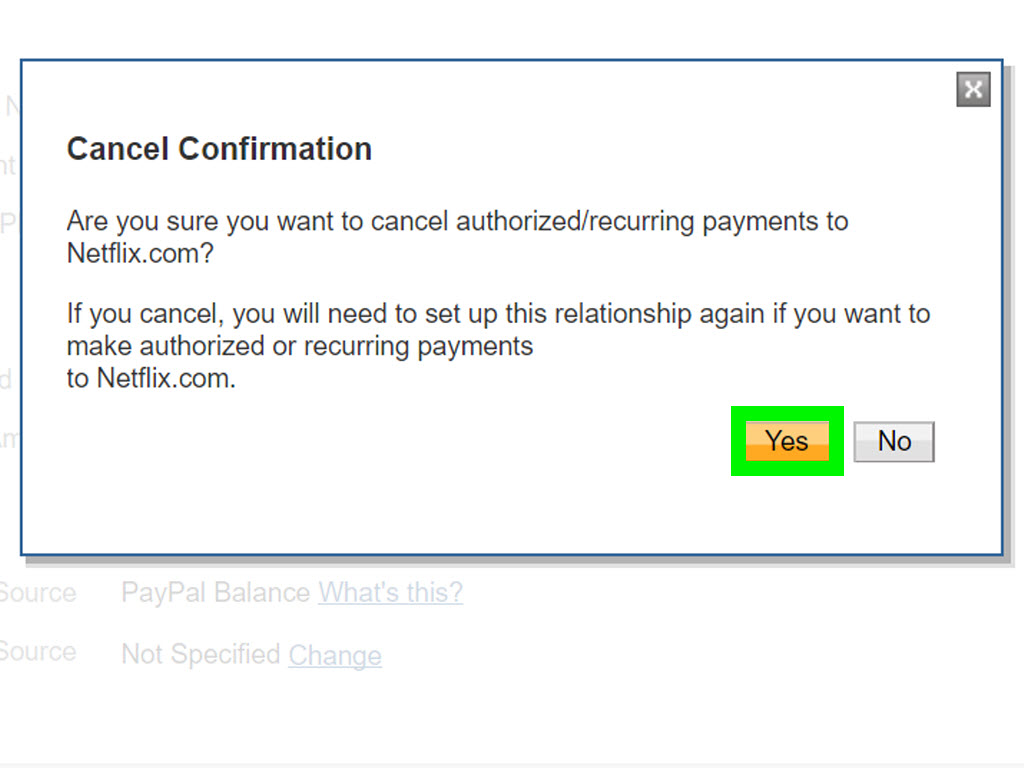
Step 7: Confirm the Cancellation and Verify the Status
PayPal will usually ask you to confirm the cancellation. After you confirm, look for a status change such as Canceled, Inactive, or confirmation that the billing agreement has been removed. If possible, take a screenshot and keep the email confirmation too. Future You will appreciate this tiny act of administrative heroism.
How to Cancel a Recurring Payment in the PayPal App
If you are using the PayPal app, the route is similar but not always identical. In many versions, you can tap the menu icon, go to Subscriptions or Linked Businesses, choose the merchant, and then tap Cancel this autopay, Stop Paying with PayPal, or Unlink. The labels can shift around, so if the app feels like it is hiding the exit, the website may be easier.
What Happens After You Cancel?
Once the recurring payment is canceled, future charges under that specific billing agreement should stop. That said, keep these details in mind:
- If the next payment was already processing, canceling may not stop that charge in time.
- You may still have access to the service until the end of the current billing cycle.
- The merchant may continue to email you with “We miss you” messages, which is emotionally unnecessary but technically allowed.
- If you want the service again later, you may need to reauthorize PayPal as a payment method.
What If the Charge Already Went Through?
If the payment is already marked Completed, you generally cannot cancel that payment directly through PayPal. Instead, follow this order of operations:
Contact the Merchant First
Many subscription sellers can issue a refund, especially if the charge just happened and you forgot to cancel before renewal. Be polite, be specific, and include the transaction date, amount, and your account email.
Use PayPal’s Resolution Tools If Needed
If the charge was unauthorized, duplicated, or otherwise problematic, you may be able to report the transaction or open a dispute through PayPal. This is especially useful when the merchant is unresponsive or the charge does not match what you agreed to.
Talk to Your Bank or Card Issuer for Stop-Payment Help
If the recurring debit is tied to a bank account and the problem continues, your bank may be able to help stop future preauthorized electronic transfers if you act early enough. This is more of a backup plan than a first click, but it matters when a billing agreement turns into a zombie charge that refuses to die.
Common Reasons People Think They Canceled PayPal Autopay When They Did Not
They changed the preferred card only
This does not always affect the subscription’s assigned funding source.
They removed a card from the wallet
That may not cancel the actual merchant agreement, and in some cases PayPal may not even let you remove the card if it is tied to a recent or pending payment.
They canceled with the merchant but not inside PayPal
Sometimes the merchant cancels your service but the billing permission lingers. Other times the opposite happens. When in doubt, check both sides: the seller account and the PayPal agreement.
They were billed through a different platform
If you signed up through Apple, Google Play, Amazon, Roku, or another billing platform, you may need to cancel there instead of in PayPal. The payment trail matters.
Best Practices to Avoid Future Surprise Charges
- Review your PayPal automatic payments every few months.
- Turn on account and transaction alerts.
- Take screenshots when you cancel a subscription.
- Watch free trials like a hawk in reading glasses.
- Check merchant names carefully so you do not miss rebranded services.
- Keep your email confirmations in one folder for quick reference.
Frequently Asked Questions
Can I cancel a completed PayPal payment?
Usually no. If the payment is already completed, you generally need to request a refund from the seller or open a dispute if there is a legitimate billing issue.
How long does it take for cancellation to work?
It is often effective immediately for future billing, but if a renewal charge is already in motion, one more payment could still post.
Will canceling in PayPal also cancel my subscription account with the company?
Not always. It stops PayPal from funding the recurring charge, but you may still need to cancel the actual membership or service with the merchant to avoid account confusion or interrupted access.
Can I reactivate a canceled recurring payment?
In many cases, yes, but you usually need to set it up again with the merchant. A canceled billing agreement does not always spring back to life automatically.
Experiences and Lessons From Real-World PayPal Subscription Headaches
Let’s talk about the part that every how-to article pretends is not the main event: the human experience. Because canceling a recurring payment in PayPal is not only about clicking buttons. It is also about memory, timing, merchant names, and the universal realization that “I swear I canceled that already” is one of adulthood’s least glamorous catchphrases.
One common experience goes like this: someone signs up for a free trial on a productivity app, fitness platform, design tool, or streaming add-on. The service is useful for about three and a half days. Then life happens. Two weeks later, there is a charge on PayPal and a moment of full detective-mode energy. The person logs in, checks Activity, sees the merchant name, and has no clue what it is. After five minutes of mild panic and one dramatic “Has my account been hacked?” thought, they realize the charge belongs to a company whose legal billing name looks nothing like the app’s public brand. Lesson learned: always click into the transaction details before assuming the worst.
Another very common situation involves changing cards. Plenty of users assume that if they remove an old debit card from PayPal or set a different preferred card, the subscription will stop billing. Then the next renewal arrives anyway. Why? Because recurring payments often have their own billing agreement and funding setup. The subscription does not care that you are having a “new year, new wallet” moment. It cares that you previously authorized it. This is why experienced users now go straight to the automatic payments section instead of playing financial whack-a-mole with saved cards.
There is also the famous last-minute cancellation story. A person remembers the renewal on the very day it is scheduled to hit. They jump into PayPal, cancel the agreement, feel victorious, and then notice the payment still processed. That is frustrating, but it is not unusual. If the charge was already underway, the cancellation may only stop the next cycle. In that situation, the smartest move is not furious clicking. It is contacting the merchant quickly, explaining that the cancellation was intended before further use, and asking for a courtesy refund. Surprisingly often, that works.
Then there are the people who cancel in one place but not the other. Maybe they cancel the service on the merchant website but leave the PayPal billing agreement active. Or they remove the PayPal agreement but never actually close the membership, so the account remains open and starts sending increasingly passive-aggressive reminder emails. The smoother experience usually comes from doing both: cancel the subscription with the merchant and then verify the PayPal agreement is inactive too.
Many users who get good at managing recurring payments end up adopting the same habits. They keep screenshots of cancellation confirmations. They create a folder in email for subscription receipts. They check PayPal settings every few months. They turn on alerts. In other words, they become the kind of organized adult they used to make fun of, and honestly, good for them.
The biggest takeaway from real experiences is simple: PayPal recurring payments are manageable, but they reward attention. A 60-second review today can prevent a month of annoyance tomorrow. And in the world of subscriptions, that counts as a small but meaningful victory.
Final Thoughts
If you want to cancel a recurring payment in PayPal, the safest path is to go directly into Settings, open Payments, find the merchant under Subscriptions and Saved Businesses or Automatic Payments, and confirm the cancellation there. Do not rely on removing a card, changing a preferred payment method, or positive thinking.
PayPal makes the process fairly manageable once you know where the controls are. The real trick is acting before the next billing date, keeping proof of cancellation, and knowing the difference between stopping future autopay and reversing a payment that already went through. That distinction saves time, stress, and at least one unnecessary support chat.

