
Skincare
How to Add One Drive to Favorites on Mac: 3 Easy Steps
Jun
Note: In this guide, “One Drive” refers to Microsoft OneDrive, and “Favorites” refers to the Favorites section in the Finder sidebar on Mac.
Adding OneDrive to Favorites on a Mac is one of those tiny productivity upgrades that feels almost too simpleuntil you realize how many clicks it saves every single day. Instead of opening Finder, hunting through Locations, scrolling around, clicking your user folder, or staring dramatically at the screen like your files have joined witness protection, you can place OneDrive right where your favorite folders already live: the Finder sidebar.
The good news is that you do not need a special utility, a secret Microsoft setting, or a degree in “Advanced Mac Button Guessing.” macOS already lets you drag folders into the Finder Favorites section, and OneDrive for Mac creates a local sync folder that behaves like a regular Finder location. Once the OneDrive app is installed and signed in, the job is mostly a matter of finding the correct folder and dragging it into place.
This article walks you through how to add OneDrive to Favorites on Mac in three easy steps. We will also cover what to do if OneDrive does not show up, why your sidebar shortcut may disappear after an update, how OneDrive Files On-Demand affects what you see in Finder, and how to keep your cloud files organized without turning your Mac into a digital junk drawer wearing a tiny aluminum hat.
Why Add OneDrive to Favorites on Mac?
The Finder sidebar is designed for speed. It gives you fast access to folders, drives, cloud storage locations, network shares, tags, and frequently used destinations. When OneDrive is added to Favorites, you can open your synced files in one click from any Finder window. That makes everyday tasks noticeably easier, especially if you use OneDrive for school, work, client projects, photos, invoices, documents, or shared Microsoft 365 files.
Think of Finder Favorites as the VIP entrance to your Mac. Documents, Downloads, Desktop, and AirDrop are already standing behind the velvet rope. Adding OneDrive simply tells macOS, “This folder matters too. Please stop making me dig for it like a raccoon searching through a picnic basket.”
There is also a practical reason: OneDrive for Mac may appear under Locations in Finder, especially on newer versions of macOS that use Apple’s File Provider system for cloud storage. That is useful, but some users prefer having OneDrive under Favorites because it sits near other daily-use folders and remains visible in Open and Save dialogs. If you regularly save Word documents, Excel files, PDFs, images, or downloads to OneDrive, adding it to Favorites can make your workflow much smoother.
Before You Start: Make Sure OneDrive Is Set Up
Before adding OneDrive to Finder Favorites, confirm that the OneDrive desktop app is installed and signed in on your Mac. You can install OneDrive from Microsoft or the Mac App Store, then sign in with a personal Microsoft account, work account, or school account. After setup, OneDrive creates a local folder that syncs with your cloud storage.
To check whether OneDrive is running, look at the menu bar at the top-right corner of your screen. You should see a cloud icon. A blue cloud usually represents a work or school account, while a white cloud often represents a personal account. If you have more than one account connected, you may see multiple OneDrive icons or folders. That is normal, although admittedly it can make Finder look like it had one espresso too many.
If OneDrive has not been configured yet, open Spotlight with Command + Space, type OneDrive, open the app, and follow the setup prompts. During setup, you may be asked which folders you want to sync. Choose the folders you need on your Mac. You can change sync preferences later if you want to save space.
How to Add One Drive to Favorites on Mac: 3 Easy Steps
Step 1: Open Finder and Locate Your OneDrive Folder
Start by opening Finder. You can click the smiling Finder icon in the Dock or press Command + Space, type Finder, and open it from Spotlight. In the Finder sidebar, look for OneDrive under Locations. Depending on your account type, it may be named something like OneDrive, OneDrive – Personal, or OneDrive – Your Company Name.
If you see it under Locations, click it once to open the folder. This is the folder you want to add to Favorites. You are not trying to drag the OneDrive app from Applications. That is a common mistake. The app manages syncing; the folder contains your files. Dragging the app icon is like trying to put the mail carrier in your filing cabinet. Technically memorable, but not helpful.
If OneDrive does not appear in the Finder sidebar, click the OneDrive cloud icon in the menu bar and look for an option such as Open Folder or Show in Finder. This should open your OneDrive folder directly. You can also search for “OneDrive” in Finder search, but using the menu bar icon is usually the cleanest route.
Step 2: Drag the OneDrive Folder into Finder Favorites
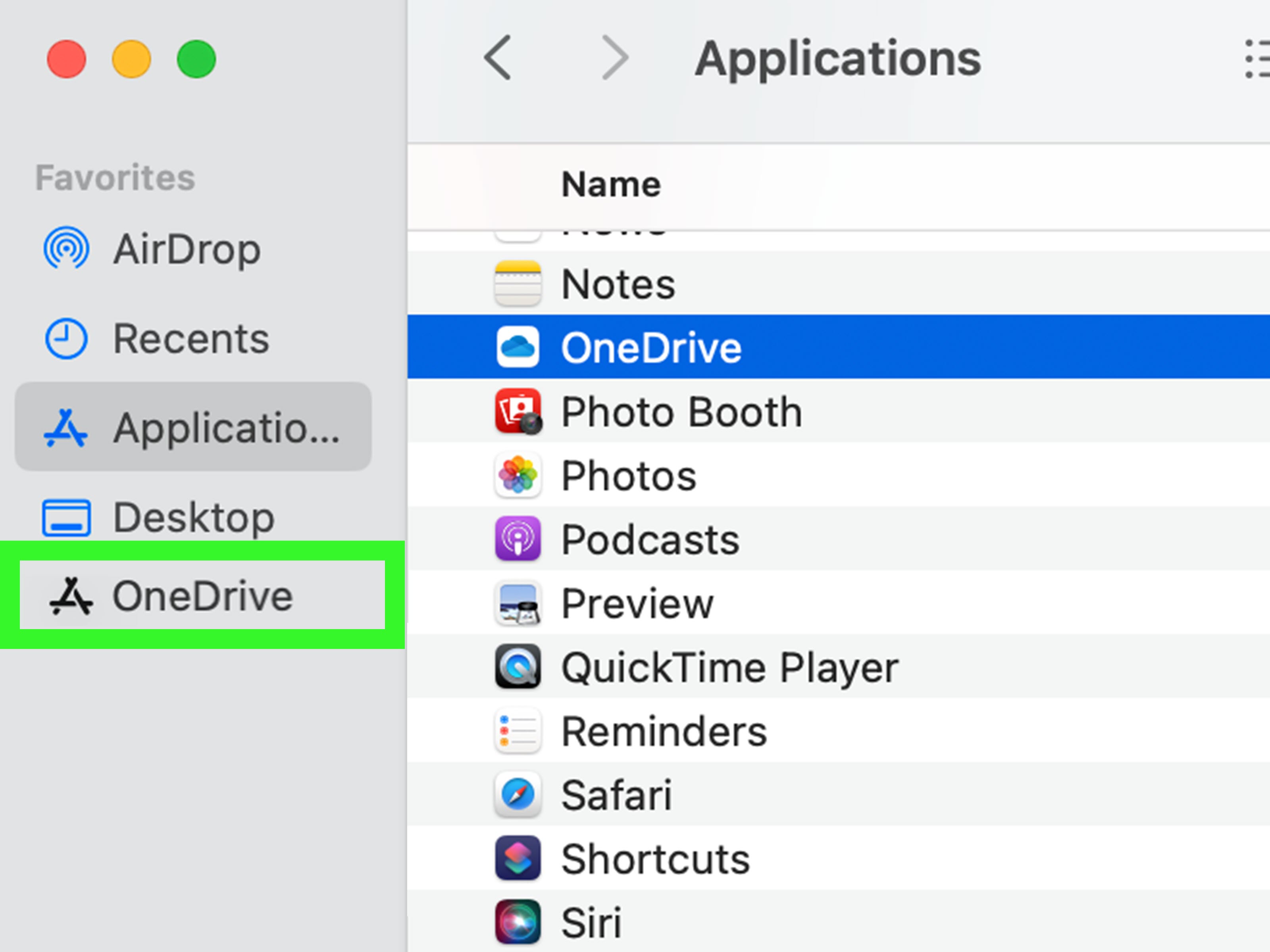
Once the OneDrive folder is visible in Finder, drag it into the Favorites section of the sidebar. Move the pointer between existing Favorites items until you see a horizontal placement line. Release the mouse or trackpad when the line appears where you want OneDrive to sit.
That is it. macOS creates a sidebar shortcut. It does not move the actual OneDrive folder, duplicate your files, or change your sync settings. The Favorites item is simply a convenient pointer to the folder. Your files remain in OneDrive, your sync app continues doing its job, and your Mac does not suddenly produce extra copies of your 4,000 vacation photos named “final-final-really-final.jpg.”
You can place OneDrive wherever it makes the most sense. Some users put it directly under Desktop or Documents. Others keep work OneDrive below company project folders. If you use both personal and business OneDrive accounts, you may want to add both folders to Favorites and rename or visually organize your folders so you do not accidentally save a grocery list to the quarterly finance directory.
Step 3: Test the Shortcut and Adjust the Sidebar
After dragging OneDrive into Favorites, click the new sidebar item to confirm it opens the correct folder. Create a small test folder or file if you want to verify that syncing is active. You should see OneDrive status icons in Finder that indicate whether files are online-only, available locally, syncing, or fully downloaded.
If the shortcut works, you are finished. You can now access OneDrive from any Finder window, many file upload dialogs, and Save dialogs in Mac apps. For example, when saving a Word document, exporting a PDF, uploading an image to a website, or attaching a file to an email, OneDrive should be much easier to reach.
If the Favorites section is hidden, open Finder, go to Finder > Settings, click Sidebar, and make sure at least one Favorites item is selected. You can also show or hide the entire sidebar from the View menu. If the sidebar is visible but cluttered, drag items up or down to rearrange them. To remove an item, right-click it and choose Remove from Sidebar. Removing a sidebar shortcut does not delete the actual folder.
What If OneDrive Is Missing from Finder?
If OneDrive is missing from Finder, the first thing to check is whether the OneDrive app is actually running. Look for the cloud icon in the menu bar. If you do not see it, open OneDrive from Applications or Spotlight. A sync app that is not running cannot politely show you its folder. It is not being mysterious; it is simply off duty.
Next, confirm that you are signed in. Click the OneDrive cloud icon, open settings or preferences, and review the account section. If you recently changed your password, moved to a new organization, updated macOS, or removed an account, OneDrive may need you to sign in again.
You should also check Finder’s sidebar settings. Open Finder > Settings > Sidebar and review the available sidebar categories. On newer macOS versions, OneDrive may appear under Locations rather than Favorites by default. That does not mean anything is wrong. It simply reflects how macOS organizes cloud storage providers.
Why Did OneDrive Disappear from Favorites?
Some Mac users notice that OneDrive disappears from Favorites after a macOS update, OneDrive update, account reset, or migration to Microsoft’s newer File Provider-based sync experience. When the underlying OneDrive folder location changes, an old Finder sidebar shortcut may no longer point to a valid folder. macOS may remove it, or it may stop working correctly.
The fix is usually simple: open the current OneDrive folder and drag it into Favorites again. Avoid using an old alias or outdated shortcut if OneDrive has moved. The newer OneDrive location may live under the system’s cloud storage area, and using the current folder helps prevent broken links.
If you see two OneDrive folders, inspect them carefully. One may be a personal account and another may be a work or school account. In some cases, one may be an older leftover location. Open each folder and check its contents before adding it to Favorites. When in doubt, use the OneDrive menu bar icon and choose the option to open the active folder.
Understanding OneDrive Files On-Demand on Mac
OneDrive Files On-Demand allows you to see files in Finder without storing every file fully on your Mac. This is especially useful if your OneDrive contains large videos, design files, archives, or years of documents that would otherwise eat your storage like a hungry digital goat.
In Finder, OneDrive status icons help you understand what is stored locally and what is available from the cloud. An online-only file appears in Finder but downloads when you open it. A locally available file has been downloaded and can be opened without waiting, although OneDrive may remove the local copy later if space is needed. A file marked to always keep on this device stays downloaded for offline access.
Adding OneDrive to Favorites does not automatically download everything. It simply makes the OneDrive folder easier to open. If you need a specific folder available offline, right-click it and choose the option to keep it on your device, when available. This is helpful before flights, travel, presentations, exams, client meetings, or any situation where Wi-Fi may behave like a moody houseplant.
How to Add a Shared OneDrive Folder to Favorites
Shared folders can be slightly different. If someone shares a OneDrive folder with you, it may not automatically appear as a normal synced folder on your Mac. In many cases, you need to open OneDrive on the web, go to shared items, and add the shared folder as a shortcut to your files. After that, the OneDrive sync app can make it available in Finder.
Once the shared folder appears inside your local OneDrive folder, you can drag that specific folder into Finder Favorites. This is useful for team projects, class folders, client deliverables, shared photos, or household documents. Instead of opening the full OneDrive directory and clicking through several layers, you can keep the shared folder one click away.
Just remember that a Finder Favorite is not the same as ownership. If the folder belongs to someone else, your access still depends on the permissions they granted. If the owner removes your access, the folder may stop syncing or disappear. The sidebar shortcut cannot magically override sharing permissions, which is probably for the best. Otherwise every office would become a file-access circus by lunchtime.
Best Practices for Keeping OneDrive Organized in Finder
Use Clear Folder Names
Clear names make cloud storage easier to navigate. Instead of vague folders like “Stuff,” “Important,” or “New Folder 27,” use names that describe the content: Client Invoices 2026, School Assignments, Marketing Assets, or Family Documents. Your future self will thank you. Your current self may still create one folder called “Sort Later,” but nobody is perfect.
Separate Personal and Work OneDrive Accounts
If you use both personal and work accounts, keep them visually distinct. The folder names may already identify them, such as OneDrive – Personal and OneDrive – Company Name. Add both to Favorites only if you actually use both often. Otherwise, keep your sidebar lean. A crowded sidebar defeats the purpose of Favorites and starts feeling like a menu at a diner with 400 sandwiches.
Pin Only What You Use Often
You do not need to add every OneDrive subfolder to Favorites. Choose the folders you open constantly. For example, a student might pin Assignments and Research. A designer might pin Client Projects and Brand Assets. A small business owner might pin Receipts, Contracts, and Reports. Favorites should reduce friction, not become a second version of your entire file system.
Common Problems and Quick Fixes
The OneDrive Folder Will Not Drag into Favorites
Make sure you are dragging the actual OneDrive folder, not the OneDrive app icon. Folders can be added to Finder Favorites by dragging them into the sidebar. App icons may behave differently depending on macOS version and Finder view. If dragging still fails, open the folder first, then drag the folder name or icon from the Finder window into Favorites.
The Favorites Section Is Not Visible
Open Finder > Settings > Sidebar and enable at least one item under Favorites. You can also use the Finder View menu to show the sidebar if it has been hidden. Once Favorites appears again, drag OneDrive into that section.
OneDrive Shows Under Locations, Not Favorites
That is normal. Locations is where macOS often displays cloud storage providers, external drives, and network locations. If you want OneDrive under Favorites too, open the OneDrive folder and drag it into the Favorites section. You can keep it visible in both places if that makes your workflow easier.
Files Open Slowly from OneDrive
Files that are online-only must download before they open. If a file is large or your internet connection is slow, this can take time. For files you need regularly, mark them to stay available offline. This is especially useful for presentations, spreadsheets, PDFs, media files, and project folders.
Experience Notes: What It Feels Like in Real Daily Use
After using OneDrive in Finder Favorites for a while, the biggest benefit is not dramatic. Your Mac will not play a trumpet. Confetti will not fall from the menu bar. The improvement is quieter: fewer clicks, less searching, and a smoother habit when saving or opening files.
For example, imagine you are writing a report in Microsoft Word and need to save it to a synced folder. Without OneDrive in Favorites, you may click through Finder locations, look for the correct account, open a project folder, and then save. With OneDrive pinned to Favorites, the path is shorter and more predictable. It turns a small interruption into a quick motion.
The same applies when uploading files in a browser. Many websites open a macOS file picker that includes Finder sidebar items. If OneDrive is in Favorites, you can jump straight to your cloud files when attaching a resume, submitting homework, uploading product photos, or sending a client document. That little shortcut becomes surprisingly valuable when you repeat it several times a day.
One helpful habit is placing your most-used OneDrive folder near Downloads. Many workflows begin in Downloads and end in cloud storage. You download a PDF, rename it, move it to OneDrive, and share it. Keeping OneDrive nearby in the sidebar makes that process feel natural. It also reduces the chance that files sit forgotten in Downloads until your Mac begins to resemble a storage-themed junk closet.
Another real-world lesson: be careful with multiple accounts. If your Mac has both a personal OneDrive and a business OneDrive, slow down when saving sensitive files. A Finder Favorite makes access faster, but speed can create mistakes if folder names look similar. Keep personal photos, tax documents, school assignments, client files, and company documents in clearly labeled places. Cloud storage is wonderfully convenient, but it is not a mind reader.
Files On-Demand is also worth understanding from experience. At first, it may feel odd to see files in Finder that are not fully stored on the Mac. But once you get used to the status icons, it becomes a smart way to balance access and storage. You can keep a giant archive visible without filling the drive. When you need something, open it. When you need something offline, mark it to stay downloaded.
For people who travel, this matters a lot. Before leaving home, open your important OneDrive folders and make key files available offline. Do not wait until you are on a plane, in a hotel with suspicious Wi-Fi, or standing in front of a meeting room projector that appears to have been built during the Bronze Age. A Finder Favorite helps you quickly check those folders before you go.
For students, OneDrive in Favorites can make assignment management cleaner. Create folders by class, semester, or project. Add the main OneDrive folderor just the current semester folderto Favorites. When downloading instructions, saving drafts, exporting PDFs, or uploading final work, everything stays close. The fewer places your assignments can hide, the better.
For professionals, the shortcut is especially useful with Microsoft 365 files. Word, Excel, and PowerPoint documents often live in OneDrive because they support syncing, autosave, version history, and sharing. Having OneDrive in Finder Favorites connects that cloud workflow to the familiar Mac file system. You get the convenience of cloud storage without constantly switching to a browser.
For home users, the biggest advantage may be peace of mind. Important documents such as receipts, warranties, insurance files, scanned IDs, family records, and photo folders are easier to maintain when the storage location is always visible. If OneDrive is buried, you may avoid using it. If it is in Favorites, saving files there becomes a habit.
The best setup is the one you will actually use. Some people prefer adding the entire OneDrive folder to Favorites. Others prefer adding only a few important subfolders. Neither approach is wrong. The goal is to reduce friction. If your sidebar helps you move faster and stay organized, it is doing its job.
One final experience-based tip: review your Favorites every month or two. Remove folders you no longer use and promote the ones that matter now. A sidebar should reflect your current workflow, not your file habits from three projects, two semesters, and one abandoned “New Year productivity system” ago. Keep it clean, and OneDrive will feel like a natural part of your Mac instead of a cloud storage add-on living in the basement.
Conclusion
Adding OneDrive to Favorites on Mac is simple: open Finder, locate the active OneDrive folder, and drag it into the Favorites section of the sidebar. This small change can save time every day, especially if you frequently open, save, upload, or organize files in Microsoft OneDrive.
The most important detail is to add the OneDrive folder, not the OneDrive application. If OneDrive is missing, open it from the menu bar or Spotlight, confirm you are signed in, and check Finder sidebar settings. If an update removes the shortcut, just drag the current OneDrive folder back into Favorites. No drama, no panic, no ritual sacrifice of your trackpad required.
Once OneDrive is pinned in Finder, your cloud files become easier to reach from Mac apps, upload windows, save dialogs, and everyday file browsing. It is a small setup step with a big convenience payoffand one of the easiest ways to make Microsoft cloud storage feel right at home on macOS.

