
Skincare
7 Ways to Change Your Home Page
Jul
Your browser home page is like the front porch of your internet life. It is the place you land when you click the Home button, open a new window, or launch your browserdepending on how your browser defines it. And yes, browsers love making this just confusing enough that you may need coffee before clicking anything.
The good news: changing your home page is usually simple once you know where the setting lives. The less-good news: “home page,” “startup page,” and “new tab page” are not always the same thing. Chrome may let you choose one page for the Home button and a different page for startup. Edge separates home, startup, and new tabs in one settings area. Safari on Mac uses the homepage field, while Safari on iPhone focuses more on the customizable Start Page. Firefox gives you flexible options for custom URLs, blank pages, and Firefox Home.
This guide walks through seven practical ways to change your home page across popular browsers and devices, including Chrome, Microsoft Edge, Firefox, Safari, Android browsers, Brave, and Opera. You will also learn how to fix a home page that keeps changing by itself, because when your browser suddenly opens a weird coupon site, that is not “personalization.” That is your computer waving a tiny red flag.
What Is a Browser Home Page?
A browser home page is the page your browser opens when you click the Home button or, in some browsers, when you open a new window. It can be a search engine, email inbox, news site, company dashboard, school portal, weather page, blank page, or any site you visit often.
Before changing it, understand these three terms:
Home Page
The page that opens when you click the browser’s Home button. Some browsers hide the Home button until you turn it on.
Startup Page
The page or pages that open when you first launch the browser. You can usually set this to a specific website, a new tab page, or your previous session.
New Tab Page
The page that appears when you open a fresh browser tab. This may show a search bar, shortcuts, news, widgets, bookmarks, or a blank page.
Why does this matter? Because changing your home page may not change what opens when the browser starts. If you set Google as your home page but Chrome still opens your old work dashboard on launch, you probably changed the Home button setting, not the startup setting. Annoying? Slightly. Fixable? Absolutely.
1. Change Your Home Page in Google Chrome on Desktop
Google Chrome is one of the easiest browsers to customize, but it separates the Home button page from the startup page. That means you may need to adjust two settings depending on what you want.
How to Change the Chrome Home Button Page
- Open Google Chrome on your computer.
- Click the three-dot menu in the upper-right corner.
- Select Settings.
- Choose Appearance.
- Turn on Show Home button.
- Select either New Tab page or Enter custom web address.
- Type the website address you want, such as https://www.google.com, https://www.bing.com, or your favorite news site.
Once you do this, clicking the Home icon will take you to your chosen page. This is perfect if you want a quick escape hatch from tab chaos. One click, and you are back to your preferred starting point.
How to Change What Opens When Chrome Starts
- Open Settings.
- Scroll to On startup.
- Choose Open a specific page or set of pages.
- Click Add a new page.
- Enter the URL you want Chrome to open at launch.
You can add multiple startup pages if your morning routine includes email, calendar, analytics, and a news site. Just be careful not to add twelve pages unless you want your laptop fan to sound like it is preparing for takeoff.
2. Change Your Home Page in Microsoft Edge
Microsoft Edge puts home page, startup page, and new tab controls under a section called Start, home, and new tab page. It is a practical setup once you know where to look.
Steps to Set a Home Page in Edge
- Open Microsoft Edge.
- Click the three-dot menu in the upper-right corner.
- Select Settings.
- Choose Start, home, and new tab page.
- Turn on Show home button on the toolbar.
- Select New tab page or choose the option to enter a custom URL.
- Type the web address you want as your home page.
To change what opens when Edge launches, stay in the same settings area and look for the startup options. You can open a new tab page, continue where you left off, or open a specific page or pages.
A practical example: if you use Edge for work, set the startup page to your company dashboard. Then set the Home button to a search engine or blank page. That gives you a professional launch point and a clean reset button during the day.
3. Change Your Home Page in Mozilla Firefox
Firefox gives you a friendly amount of control over the home page and new windows. You can use Firefox Home, a blank page, or one or more custom URLs.
Steps to Change the Firefox Home Page
- Open Firefox.
- Click the menu button in the upper-right corner.
- Select Settings.
- Click Home.
- Find Homepage and new windows.
- Choose Firefox Home, Custom URLs, or Blank Page.
- If you choose custom URLs, enter the website address you want.
Firefox is a strong choice if you like a cleaner browsing experience. A blank page can be surprisingly peaceful. No headlines yelling. No shortcuts judging you. No shopping ads reminding you about the blender you looked at once in 2021.
Firefox Tip: Use Current Pages
If you already have the page open that you want as your home page, Firefox may let you use your current page or current tabs when setting the custom home page. This is helpful if you want several important pages to open together.
4. Change Your Home Page in Safari on Mac
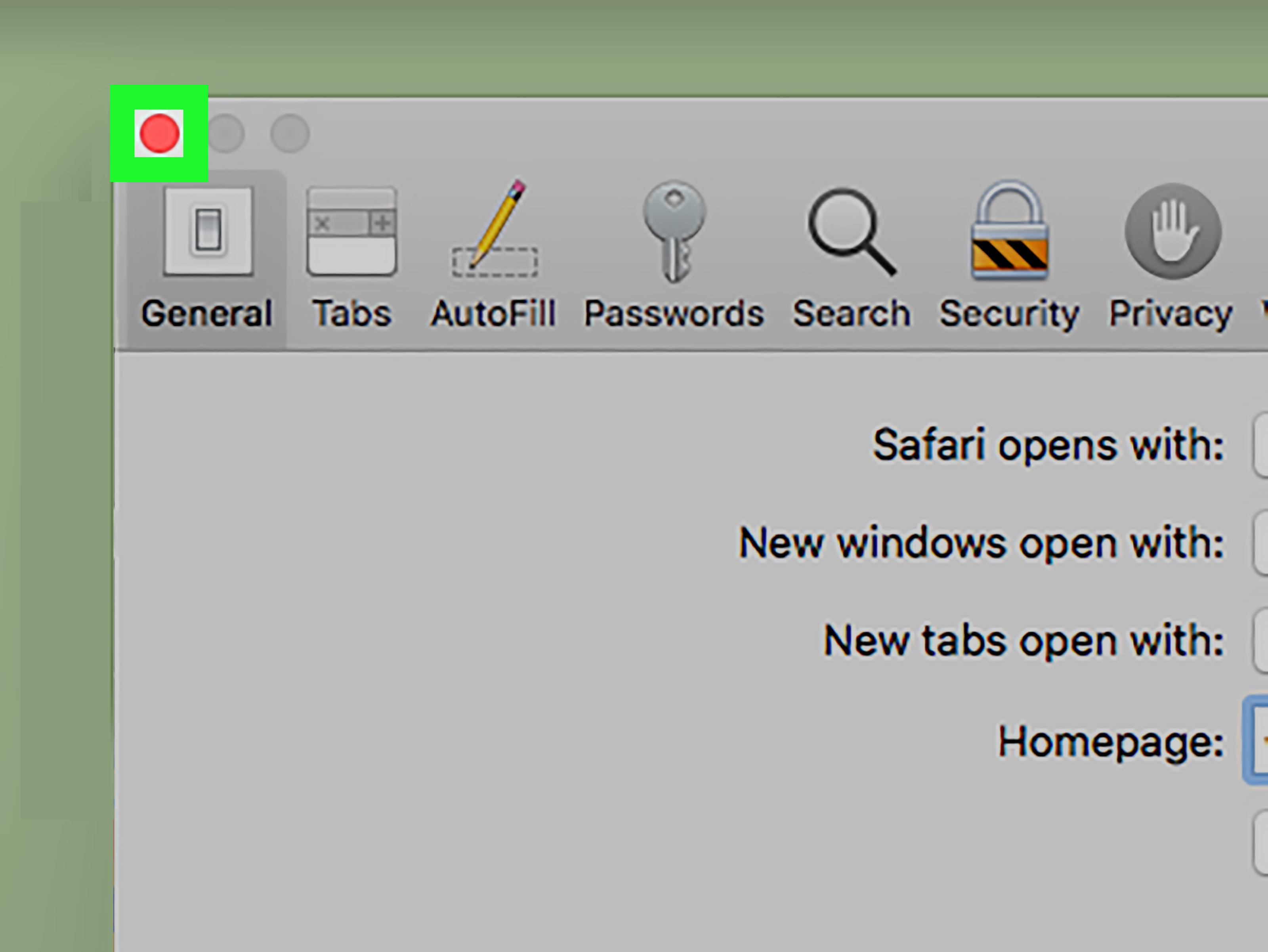
Safari on Mac handles home page settings through the browser’s General settings. This is where you choose the page Safari uses when opening new windows or tabs, depending on your preferences.
Steps to Change the Safari Home Page on Mac
- Open Safari on your Mac.
- Click Safari in the menu bar.
- Select Settings.
- Click General.
- Find the Homepage field.
- Enter the web address you want.
- Use the new window and new tab options to decide when Safari shows that homepage.
You can also set the current page as your homepage if you already have it open. This is useful when you finally find the perfect minimalist start page and do not want to risk typing the URL wrong.
For Mac users, the best homepage is often something simple: a search engine, iCloud, a work portal, or a favorite productivity dashboard. Safari is fast and clean, so pairing it with a clutter-free homepage makes the browser feel even smoother.
5. Customize the Start Page on Safari for iPhone and iPad
Safari on iPhone and iPad does not work exactly like desktop browsers. Instead of a traditional home page field, Safari focuses on the Start Pagethe page you see when opening a new tab. You can customize it with Favorites, frequently visited sites, privacy reports, shared links, reading list items, and background images.
How to Customize Safari Start Page on iPhone
- Open Safari on your iPhone or iPad.
- Open a new tab.
- Scroll to the bottom of the Start Page.
- Tap Edit.
- Turn sections on or off, such as Favorites, Frequently Visited, Shared with You, or Reading List.
- Choose a background image if you want a more personal look.
This will not behave exactly like setting a classic homepage URL, but it does let you shape what appears when you begin browsing. For many mobile users, that is more useful than forcing every session to start on one website.
Mobile Shortcut Option
If you want one website to feel like a home page on iPhone or iPad, open that site in Safari, tap the Share button, and choose Add to Home Screen. This creates an app-like shortcut. Tap it, and the site opens directly. It is not a browser homepage in the old-school desktop sense, but it works beautifully for email, banking, school portals, recipes, and dashboards.
6. Change Your Home Page on Android Browsers
Android gives you several browser options, including Chrome and Samsung Internet. The steps vary, but the idea is the same: open settings, find homepage controls, and choose the page you want.
Change Home Page in Chrome for Android
- Open Chrome on your Android phone or tablet.
- Tap the three-dot menu.
- Select Settings.
- Under advanced settings, tap Homepage.
- Turn the homepage option on if needed.
- Choose Chrome’s homepage or enter a custom web address.
Chrome on Android is especially useful if you want a familiar experience across your phone and computer. For example, you might use the same search engine or productivity page on both devices.
Change Home Page in Samsung Internet
- Open the Samsung Internet browser.
- Tap the menu or tools icon.
- Choose Settings.
- Tap Homepage.
- Select the option you prefer, such as the default page, current page, quick access page, or a custom page.
Samsung Internet is popular on Galaxy phones because it offers strong customization, quick access tiles, privacy tools, and a layout that works well on large phone screens. If you use a Galaxy device, setting a useful homepage can make daily browsing noticeably faster.
7. Change Your Home Page in Brave or Opera
Brave and Opera are popular alternatives for users who want more privacy features, built-in tools, or a different browser personality. They handle home and startup pages a little differently.
Change Home Page in Brave
- Open Brave.
- Go to Settings.
- Choose Appearance.
- Turn on Show Home button.
- Enter the custom web address you want.
- To change startup behavior, go to the startup or “Get Started” settings and choose a specific page or set of pages.
Brave also lets you customize what appears on the new tab page. If you want privacy-focused searching, a blank page, or a favorite search engine, Brave gives you enough control to avoid the usual clutter buffet.
Change Startup Page in Opera
- Open Opera.
- Go to Settings or Preferences.
- Find the On startup section.
- Choose to open a specific page or set of pages.
- Add the website address you want Opera to open when it launches.
Opera’s Start Page is central to the browser experience, especially with Speed Dial shortcuts and sidebar tools. Instead of thinking only about one homepage, consider building a useful start page with your most-used sites pinned neatly. Think of it as a digital command center, minus the dramatic movie lighting.
How to Choose the Best Home Page
Choosing a home page sounds simple until you realize it quietly shapes your online habits. A noisy homepage can pull you into news, shopping, or social media before you remember why you opened the browser. A focused homepage can save time and reduce distraction.
Best Home Page Ideas
- Search engine: Google, Bing, DuckDuckGo, Startpage, or another search tool.
- Email inbox: Gmail, Outlook, Yahoo Mail, or your work email portal.
- Productivity dashboard: Notion, Trello, Asana, ClickUp, Google Calendar, or Microsoft 365.
- News page: A trusted news source or personalized news hub.
- Blank page: Best for speed, privacy, and fewer distractions.
- Company intranet: Useful for employees who start each day with internal tools.
- School portal: Helpful for students, parents, and teachers.
For most people, the best homepage is not the fanciest one. It is the one that helps you do what you opened the browser to do. If your homepage makes you forget your original task within six seconds, it has failed its one job.
Why Your Home Page Keeps Changing
If your homepage keeps switching back after you change it, something else may be controlling your browser. The cause might be a browser extension, synced settings, workplace or school policy, bundled software, or malware known as a browser hijacker.
Common Causes
- Extensions: Some add-ons can change your homepage, search engine, or new tab page.
- Sync settings: If browser sync is enabled, another device may restore old settings.
- Managed browser policies: Work or school accounts may lock homepage settings.
- Recently installed software: Free software sometimes bundles unwanted browser changes.
- Browser hijackers: Malicious or unwanted programs may redirect your homepage and search results.
How to Fix a Homepage That Will Not Stay Changed
- Remove unfamiliar browser extensions.
- Reset your browser settings to default.
- Check startup apps and recently installed programs.
- Run a trusted antivirus or anti-malware scan.
- Check whether your browser says it is managed by an organization.
- Review sync settings and disable sync temporarily if old settings keep returning.
- Update your browser and operating system.
If the browser opens suspicious pages, displays toolbars you did not install, or redirects searches to strange sites, treat it as a security issue rather than a normal settings problem. A homepage should not behave like a raccoon that found the keyboard.
Home Page vs. Search Engine: Do Not Mix Them Up
Many people change their homepage when they actually want to change their default search engine. These are different settings.
Your home page is the page that opens when you click Home or start the browser. Your default search engine is the service used when you type a search into the address bar. You can set Google as your homepage but use Bing in the address bar. You can set DuckDuckGo as your search engine but keep your homepage as a blank page. Browsers allow these combinations because apparently one simple setting would be too merciful.
To change your default search engine, look for settings labeled Search engine, Address bar and search, or Search. This is especially important if your searches are being redirected even after your homepage looks correct.
Practical Examples for Different Users
For Remote Workers
Set your startup pages to open your email, calendar, project management tool, and company dashboard. Set your Home button to a search page or blank page for quick resets.
For Students
Use your school portal, learning management system, or Google Drive as your homepage. This reduces the chance of opening a browser to “study” and accidentally spending 45 minutes researching whether penguins have knees.
For Families
Set a family-safe search page, shared calendar, or frequently used streaming guide as the homepage. For shared computers, avoid personal email or banking pages as the default.
For Minimalists
Choose a blank page. It loads quickly, protects privacy, and gives you a quiet start. It is the browser equivalent of clearing your desk before work.
Extra Experiences: What Changing Your Home Page Really Feels Like in Daily Life
Changing your home page sounds like a tiny browser setting, but in daily life it can feel like rearranging the front door of your digital house. Many people do not think about their homepage until something becomes annoying. Maybe the browser opens a news site that instantly steals attention. Maybe a work computer launches five internal pages every morning, three of which nobody has loved since 2017. Maybe a family laptop opens an old search page with so many toolbars that it looks like the browser is wearing twelve belts.
One common experience is the “morning routine upgrade.” A person who starts work by opening email, calendar, and a project dashboard can set those as startup pages and save a few minutes every day. It does not sound dramatic, but small friction adds up. When the right pages open automatically, the browser becomes less of a messy drawer and more of a prepared workspace. The day starts with fewer clicks, fewer distractions, and less opportunity to wander into online shopping before 9 a.m.
Another relatable experience is helping a parent or relative change a homepage that was accidentally taken over by a random site. This usually begins with the sentence, “I do not know what happened, but the internet changed.” The fix may be simple: remove a strange extension, reset the browser, and enter the preferred homepage again. But the emotional result is bigger than the technical task. The browser feels familiar again. The person stops worrying that the computer is broken. Peace returns to the kitchen table.
Students often benefit from changing the home page more than they expect. If the first page is a school portal, assignment calendar, or research database, it nudges them toward the right task. If the first page is a video site or social feed, the browser becomes a trapdoor. Nobody plans to lose an hour. It just happens, one recommended video at a time. A focused homepage does not create discipline by magic, but it removes one easy excuse.
Mobile users have a different experience. On iPhone, customizing Safari’s Start Page or adding a site to the Home Screen can make a favorite website feel like an app. On Android, setting Chrome or Samsung Internet to open a preferred page can make quick searches and daily check-ins smoother. For people who repeatedly visit the same bank, recipe site, transit page, or work portal, this shortcut saves time and thumb energy. Thumb energy is real. Protect it.
The biggest lesson from real-world homepage changes is simple: your browser should open with intention. It should not be controlled by old habits, bundled software, or a page you stopped using years ago. Whether you choose a search engine, blank page, dashboard, or custom start page, the right choice is the one that helps you get where you meant to go.
Conclusion
Learning how to change your home page is one of the easiest ways to make your browser feel cleaner, faster, and more personal. Whether you use Chrome, Edge, Firefox, Safari, Samsung Internet, Brave, or Opera, the basic idea is the same: open settings, find the home or startup section, and choose the page that fits your routine.
The key is knowing which setting you actually want. Change the home page if you want the Home button to open a specific site. Change the startup page if you want certain pages to appear when the browser launches. Customize the new tab page if you want every fresh tab to look cleaner or more useful.
Finally, if your homepage changes without permission, do not ignore it. Check extensions, synced settings, policies, and malware. Your home page should be your choicenot a surprise gift from suspicious software wearing a fake mustache.
Note: This article is based on current browser settings guidance from major browser makers and common security best practices for handling unwanted homepage changes.

