
Hair Care
How to Save Telegram GIFs on Android: 5 Steps
Jun
Saving Telegram GIFs on Android should be as easy as grabbing the last slice of pizza. Tap, save, done. But then Android storage rules walk in wearing a tiny security badge, Telegram adds its own “saved GIFs” system, and suddenly your perfect reaction GIF is somewhere between “Saved to Downloads” and “Where did it go, little buddy?”
The good news: saving GIFs from Telegram on Android is still simple once you understand what you are trying to save. Do you want to save the GIF inside Telegram so you can reuse it in chats? Or do you want to download the GIF or GIF-style video file to your Android phone so it appears in Files, Downloads, or your gallery? This guide explains both, with five clear steps, troubleshooting tips, privacy notes, and real-world advice for anyone who has ever lost a GIF and questioned their relationship with technology.
Below, you will learn how to save Telegram GIFs on Android, where saved Telegram GIFs usually go, why some GIFs do not appear in your gallery, and how to keep your favorite animated reactions ready for dramatic entrances, sarcastic exits, and group-chat chaos.
What “Saving a Telegram GIF” Really Means
Before tapping anything, it helps to know that Telegram treats GIFs a little differently from a standard image download. In Telegram, many GIFs behave like short looping videos. They autoplay, repeat, and look like GIFs, but depending on the original file and Telegram’s conversion process, the saved result may not always be a traditional .gif file. Sometimes it may save as a video-style file instead.
There are two common ways people use the phrase “save Telegram GIFs on Android”:
1. Save to Telegram’s GIF Panel
This means adding a GIF to Telegram’s internal saved GIF collection. Once saved, you can open the emoji/sticker/GIF panel and send that GIF again without hunting through old chats. This is ideal for reaction GIFs you use often, such as “slow clap,” “facepalm,” or the legendary “I am pretending to understand this meeting.”
2. Save to Android Storage
This means downloading the file to your phone, usually through an option like Save to Downloads or Save to Gallery, depending on your Telegram version and Android device. This is better if you want to share the GIF outside Telegram, back it up, edit it, upload it elsewhere, or keep it even if the chat disappears.
Because Telegram updates its Android app regularly and Android manufacturers customize menus, the exact wording may vary. On one phone, you may see Save to GIFs. On another, you may see Save to Downloads. On some devices, media may appear in Files but not immediately in Google Photos or the default Gallery app. Annoying? Yes. Fixable? Also yes.
How to Save Telegram GIFs on Android: 5 Steps
Follow these steps when you want to save a GIF from a Telegram chat, group, or channel on your Android phone.
Step 1: Open Telegram and Go to the Chat with the GIF
Open the Telegram app on your Android phone. Then go to the private chat, group, channel, or Saved Messages conversation where the GIF appears. If the GIF has not fully loaded yet, tap it once or wait for Telegram to download the preview. A GIF that is still loading may not show all save options right away.
If you are searching for an old GIF, use Telegram’s search feature inside the chat. Tap the chat name or menu, choose search, and try terms related to the GIF. If someone captioned it with “mood,” “lol,” or “Monday,” congratulationsyou are now doing digital archaeology with terrible labels.
Step 2: Tap the GIF to Open or Preview It
Tap the GIF so it opens in a larger view or becomes active in the chat. This makes Telegram reveal more options. In many Telegram Android versions, you can also long-press the GIF directly in the chat to open a menu.
If tapping does not show a menu, try long-pressing. If long-pressing does nothing, tap the GIF first, then look for the three-dot menu in the corner. Telegram loves three-dot menus. They are tiny doors to everything useful.
Step 3: Tap the Three-Dot Menu
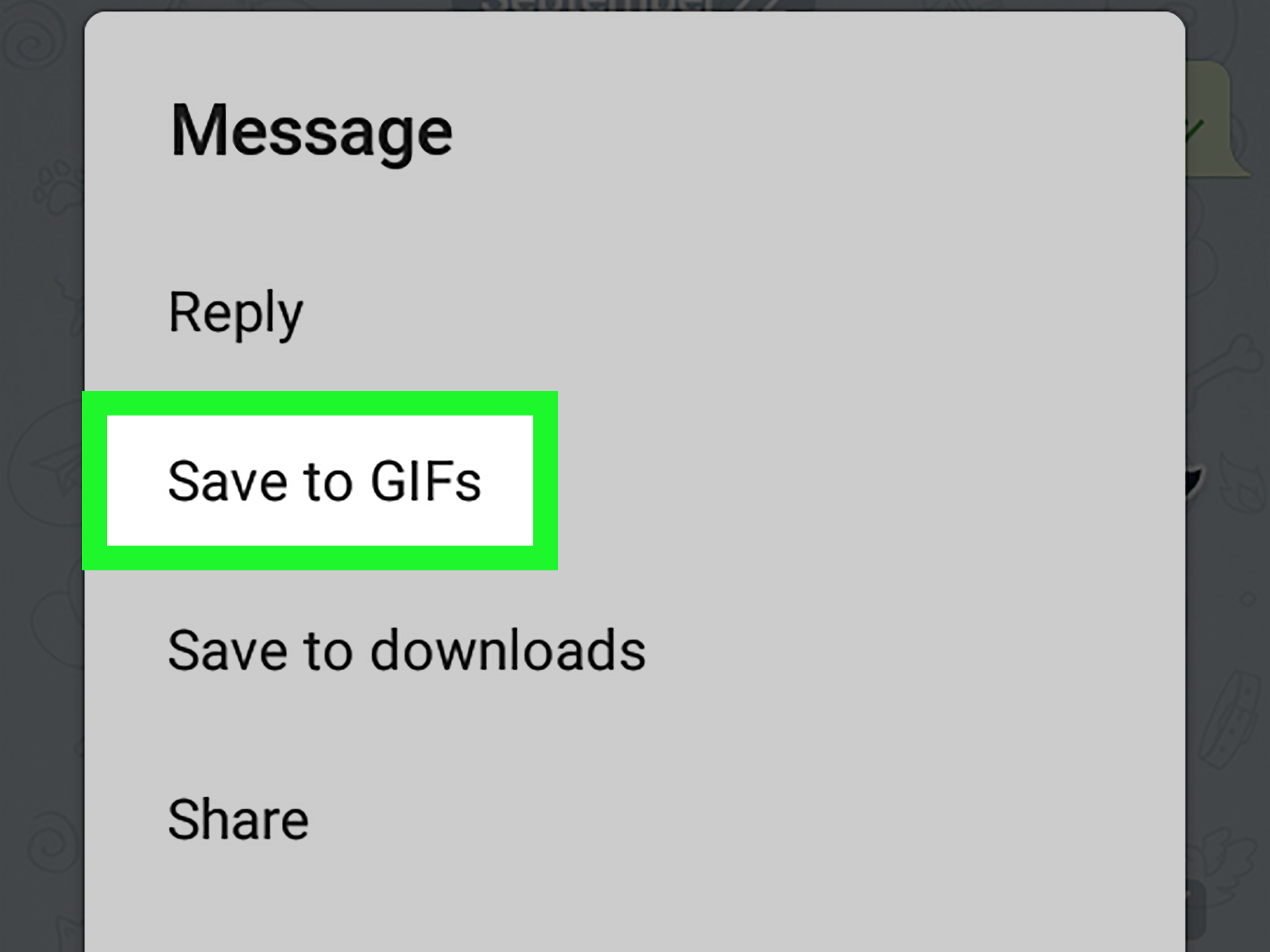
Look for the vertical three-dot icon, usually in the top-right corner of the screen or attached to the message options. Tap it. This menu may show several options, such as:
- Save to GIFs
- Save to Downloads
- Save to Gallery
- Share
- Forward
- Copy Link, if the GIF is from a public source or bot
The option you choose depends on your goal. If you want to reuse the GIF inside Telegram, choose Save to GIFs. If you want the file on your phone, choose Save to Downloads or Save to Gallery, whichever appears.
Step 4: Choose Save to GIFs, Downloads, or Gallery
Here is the important part. Choose the save option that matches what you need:
Choose “Save to GIFs” when you want the animation stored in Telegram’s GIF tab. This is the fastest option for people who want to send the same GIF again later. After saving, open any chat, tap the emoji icon, switch to GIFs, and look for your saved or recent GIFs.
Choose “Save to Downloads” when you want to store the GIF or GIF-like media file on your Android phone. After saving, open your Files app and check the Downloads folder. On some phones, the file may appear under a Telegram-related folder or recent downloads list.
Choose “Save to Gallery” when you want Telegram media to show in your gallery app. This option is more common for photos and videos, but depending on the file type and Telegram version, it may appear for GIF-style media too. If the GIF does not show up in Gallery immediately, do not panic. Gallery apps sometimes need time to scan new files, and some GIFs may be saved in a format your gallery displays as a video.
Step 5: Find and Reuse the Saved GIF
If you saved the GIF inside Telegram, open a chat, tap the emoji/sticker icon, go to the GIF tab, and check your saved or recent GIFs. You should be able to send it again without scrolling through the original conversation.
If you downloaded the file to Android storage, open the Files app and check Downloads, Recent, or a Telegram folder. If you saved it to Gallery, open Google Photos or your phone’s Gallery app and look under albums, videos, downloads, or Telegram media folders.
If it still does not appear, go to your Android Settings, find Telegram under Apps, and check whether Telegram has permission to access photos, videos, or files. Android versions differ, but media permissions can affect whether Telegram can save, display, or share files smoothly.
Where Are Telegram GIFs Saved on Android?
Telegram GIFs can be stored in different places depending on how you saved them. This is where many users get confused. The GIF is not necessarily “gone”; it may just be sitting in a folder with the energy of a raccoon hiding behind a trash can.
If You Used Save to GIFs
The GIF is saved inside Telegram, not as a normal file you browse in your phone storage. You access it through Telegram’s GIF panel when composing a message. This is best for reuse within Telegram, but it is not the same as downloading a file to your phone.
If You Used Save to Downloads
Open your Android Files app and check the Downloads folder. You may also use the search bar in Files and search for “Telegram,” “GIF,” “MP4,” or the date you saved the media.
If You Used Save to Gallery
Open your Gallery app or Google Photos. Look in albums such as Telegram, Downloads, Videos, or Recent. Some Android phones show Telegram media immediately, while others need a little time. If the file is saved as a video, it may not appear with still images.
If Telegram Cached the GIF Automatically
Telegram stores viewed media in its app cache so it can load faster next time. Cached media is not the same as intentionally saved media. If you clear Telegram’s cache, those temporary files may disappear from your device, although Telegram can usually re-download cloud media when you revisit the chat, unless the message or file has been deleted or restricted.
How to Save a GIF to Telegram’s GIF Keyboard
If your goal is to build a personal reaction library inside Telegram, use Save to GIFs. This is the cleanest method.
- Open the chat containing the GIF.
- Tap or long-press the GIF.
- Tap the three-dot menu.
- Select Save to GIFs.
- Open the GIF tab in any chat to send it again.
This method is perfect for everyday Telegram users. You do not have to manage files, rename downloads, or dig through Android folders. The GIF stays available in Telegram’s GIF interface, which is exactly where you need it when your friend says something ridiculous and only a perfectly timed animated reaction will do.
How to Download Telegram GIFs to Your Android Phone
If you need the file outside Telegram, use a download option instead. This is useful when you want to send the GIF through email, upload it to a website, post it on another platform, or keep a local backup.
Open the GIF, tap the three-dot menu, and choose Save to Downloads if available. After that, open your Files app and check Downloads. If Telegram saves the animation as a video file, you can still share it from Files, but it may not behave like a classic GIF in every app.
Some platforms accept GIFs only as .gif files, while others accept short looping videos. If your downloaded Telegram GIF appears as a video, that is usually normal. Telegram often optimizes animated media for speed and smaller file size, which makes chats faster but can surprise users who expected a neat little GIF file with a bow on it.
Why Telegram GIFs May Not Show in Gallery
One of the most common complaints is: “I saved the GIF, but it is not in my gallery.” This can happen for several reasons.
The File Was Saved Inside Telegram, Not to Your Phone
If you tapped Save to GIFs, the GIF went to Telegram’s internal GIF collection. It will not necessarily appear in Gallery or Google Photos. Check Telegram’s GIF tab instead.
The GIF Saved as a Video
Some Telegram GIFs are stored as short video files. Your gallery may place them under Videos, not Images. Look in video albums or use the Files app.
Android Permissions Are Blocking Access
Android may require Telegram to have permission for photos, videos, or files. Go to Settings > Apps > Telegram > Permissions and check media access. The exact path varies by device, but the principle is the same: Telegram needs permission to save or interact with certain files.
Your Gallery Has Not Refreshed
Gallery apps sometimes take a moment to scan new media. Close and reopen the Gallery app, restart your phone, or check the Files app directly. Files is often more honest than Gallery. Gallery wants to be pretty; Files wants to tell the truth.
The Chat Has Download Restrictions
Some Telegram channels or private chats may restrict forwarding or saving. If a channel owner has limited content sharing, you may not see normal save options. Respect those restrictions. A GIF may be funny, but copyright and privacy rules are still invited to the party.
How to Turn On Telegram Save to Gallery on Android
If you want Telegram media to appear in your Gallery more consistently, check Telegram’s media settings.
- Open Telegram.
- Tap the menu icon or your profile/settings area.
- Go to Settings.
- Tap Data and Storage.
- Look for Save to Gallery or media download settings.
Telegram may let you control saving behavior by chat type, such as private chats, groups, and channels. This gives you more control. For example, you may want to save media from friends but not from every meme channel you joined at 1:00 a.m. during a “just browsing” incident.
Be careful with automatic saving. If you enable everything, your gallery may fill up quickly with reaction GIFs, stickers, forwarded clips, and images you never planned to keep. A tidy phone is a happy phone. Or at least a phone with enough storage to update apps without begging.
Troubleshooting: Telegram GIFs Will Not Save on Android
If the save option does not work, try these fixes.
Update Telegram
Open Google Play and check whether Telegram has an update. Media-saving bugs often get fixed in app updates. If you are using an outdated version, you may be fighting a problem that Telegram already solved while you were busy saving cat GIFs.
Check Android Permissions
Go to your phone’s Settings, open Apps, choose Telegram, and review permissions. Allow access to photos and videos if you want Telegram to save or display media properly. On older Android versions, this may appear as Storage permission.
Check Storage Space
If your phone is nearly full, downloads may fail or behave strangely. Delete old cache files, remove duplicate videos, or move large files to cloud storage. Telegram can also clear its cache without deleting cloud chats.
Try Saving to Saved Messages First
Forward the GIF to your own Saved Messages chat, then try saving it from there. This can make the GIF easier to find later and gives you a personal holding area for useful media.
Use the Share Option
If direct saving fails, tap Share and send the GIF to another app that can store files, such as Files, Google Drive, or a file manager. This is not always as elegant, but it works when the normal save button decides to take a lunch break.
Best Practices for Saving Telegram GIFs on Android
Saving GIFs is easy; keeping them organized is where civilization begins. Use these habits to avoid turning your phone into a museum of unlabeled animations.
Use Saved Messages as a GIF Locker
Telegram’s Saved Messages chat is excellent for storing GIFs you may want later. Forward important GIFs there, add a short text label, and search for them later. For example, type “reaction shocked,” “work mood,” or “birthday funny” before or after the GIF.
Rename Downloaded Files
If you download GIFs to your Android phone, rename useful files. A file named telegram_2026_06_14_83929.mp4 is not exactly poetry. A name like funny-dog-reaction.mp4 is much easier to find.
Do Not Save Everything
Not every GIF deserves permanent residence on your phone. Save the great ones. Let the mediocre ones float away into the digital sunset. Your storage will thank you.
Respect Copyright and Privacy
Only save and reuse GIFs in ways that respect creators, private conversations, and platform rules. Avoid reposting private media from chats or restricted channels. The internet remembers, screenshots travel, and group chats have witnesses.
Common Questions About Saving Telegram GIFs on Android
Can I Save Telegram GIFs as Real .GIF Files?
Sometimes, but not always. Telegram may handle animated media as optimized video-like files. If you specifically need a .gif file, you may need to use a converter after downloading, depending on the saved format.
Why Do My Saved Telegram GIFs Look Like Videos?
Telegram often optimizes animations so they load quickly and play smoothly. As a result, a “GIF” inside Telegram may save as a short video file. It still loops like a GIF in Telegram, but Android may classify it as video.
Can I Save GIFs from Telegram Channels?
Yes, if the channel allows saving or forwarding. Some channels restrict sharing, downloading, or copying. If the save option is missing, the channel may have content protection enabled.
Will Clearing Telegram Cache Delete My Saved GIFs?
Clearing cache removes temporary downloaded media from your device. It should not delete your cloud chats, but files that were only cached may need to be downloaded again. If you want permanent local access, use a download or gallery save option.
Can I Save GIFs Without Using a Third-Party App?
Yes. In most cases, Telegram’s built-in save options are enough. Third-party download apps are usually unnecessary and may raise privacy or security concerns. If an app asks for broad access to your chats or files, be cautious.
Real-World Experience: What Saving Telegram GIFs on Android Is Actually Like
In everyday use, saving Telegram GIFs on Android is less about one magic button and more about knowing which door to open. The first time many users try it, they tap a GIF, see it play beautifully, hit a menu option, and assume it has landed safely in their Gallery. Then they open Photos and find nothing. This is the moment when the phone gets stared at like it has betrayed the family.
The most common experience is that Save to GIFs works exactly as intended, but not as expected. People think it means “save this file to my phone.” Telegram means “save this animation to your Telegram GIF panel.” Both interpretations make sense, but they lead to different places. Once users understand that difference, the process becomes much easier. For reaction GIF collectors, saving to Telegram’s GIF tab is actually better than downloading. You can reuse the animation quickly in any conversation without digging through folders.
Another common experience involves Android’s Files app saving the day. A user may swear the GIF vanished because it does not appear in Gallery. But when they open Files, tap Downloads, and sort by newest, there it ispossibly wearing a video file extension instead of a GIF extension. This is especially common with Telegram animations because they may be optimized as short looping video files. The animation is not broken; it is just not dressed in the file format you expected.
Gallery confusion is also normal. Google Photos, Samsung Gallery, Xiaomi Gallery, and other Android gallery apps do not always behave the same way. Some show Telegram downloads immediately. Others group them into albums. Some ignore certain folders until the phone refreshes its media index. That is why checking Files is the practical move. Gallery is for browsing memories; Files is for solving mysteries.
Permissions can also create strange experiences. On newer Android versions, apps may need more specific access to photos and videos. If Telegram lacks permission, saving may fail, or the saved file may not appear where expected. The fix is usually simple: open Android Settings, find Telegram, review permissions, and allow the relevant media access. It is not glamorous, but neither is searching for a GIF for 15 minutes while your group chat moves on without you.
The best personal workflow is to use Telegram’s Saved Messages as a staging area. When you find a GIF worth keeping, forward it to Saved Messages and add a short label like “happy dance,” “nope,” “dramatic exit,” or “confused cat.” Later, you can search your own Saved Messages instead of scrolling through months of chats. For GIFs you need outside Telegram, download them separately and rename the file. A few seconds of organization prevents future you from yelling at present you through time.
In short, the experience becomes smooth once you stop expecting every Telegram GIF to behave like a normal image. Save to GIFs for Telegram reuse. Save to Downloads for local storage. Check Files before blaming Gallery. Update Telegram when menus look different. And when in doubt, send the GIF to Saved Messages first. It is the digital equivalent of putting your keys in the same bowl every daysimple, boring, and wildly effective.
Conclusion
Saving Telegram GIFs on Android takes only a few taps, but choosing the right save option matters. If you want to reuse a GIF in Telegram, choose Save to GIFs. If you want the file on your phone, choose Save to Downloads or Save to Gallery when available. If the GIF does not appear where you expected, check your Files app, review Telegram permissions, update the app, and remember that some Telegram GIFs may save as short video files rather than classic .gif files.
The five-step method is simple: open the chat, tap the GIF, open the three-dot menu, choose the correct save option, and find the GIF in Telegram, Downloads, or Gallery. Once you understand the difference between Telegram’s saved GIF panel and Android’s local storage, the whole process becomes much easier. Your favorite reaction GIFs can finally live where they belong: ready to appear at the exact moment words are not enough.

