
Hair Care
What Is Background App Refresh on iPhone? Easy Explanation
Jun
If your iPhone had a tiny backstage crew, Background App Refresh would be the person quietly updating your apps before you walk back into the room. It is not glamorous. It does not wear a cape. But it can make your weather app feel ready, your news feed feel fresh, and your task manager look like it has been drinking productivity coffee since 6 a.m.
Still, many iPhone users see the setting and immediately wonder: Should I turn this off? Is it killing my battery? Is my phone secretly running a tiny data buffet behind my back? The answer is: sometimes, a little, and only if you let too many apps join the buffet.
In this easy explanation, we will break down what Background App Refresh on iPhone actually does, when it helps, when it wastes battery or cellular data, and how to manage it without turning your phone into a digital potato.
What Is Background App Refresh on iPhone?
Background App Refresh on iPhone is an iOS feature that lets apps update their content while you are not actively using them. In plain English, it allows certain apps to check for new information in the background so they are more up to date when you open them again.
For example, imagine opening a weather app. Without background refreshing, the app may need a moment to load the latest forecast. With Background App Refresh enabled, the app may already have updated the forecast before you tap it. That means less waiting and fewer spinning loading circles, which are basically the mosquitoes of modern technology.
This feature can apply to apps like email clients, news apps, cloud storage tools, fitness apps, messaging-related services, calendar apps, and travel apps. However, not every app needs it. A banking app may not need to refresh constantly. A calculator definitely does not need to wake up in the background and ponder the meaning of 7 x 8.
How Background App Refresh Works
When you leave an app, your iPhone usually does not let it run freely forever. iOS is designed to manage background activity carefully. Most apps are paused or suspended shortly after you stop using them. This protects battery life, performance, and system stability.
Background App Refresh gives compatible apps limited opportunities to wake up briefly and update content. The key word is limited. It does not mean every app is constantly running at full speed like a laptop fan during a software update.
Apple’s system decides when background refresh is appropriate based on factors such as power level, network connection, usage patterns, and system conditions. If your iPhone is low on battery, in Low Power Mode, or trying to reduce data use, background refresh may be paused or restricted.
Simple Example: Background App Refresh in Real Life
Let’s say you check a news app every morning. If Background App Refresh is enabled, the app may fetch the latest headlines before you open it. When you tap the app, fresh stories are already there. Lovely. Efficient. Almost suspiciously polite.
Now imagine a shopping app you open once every three months to buy phone cases you definitely do not need. If that app is allowed to refresh in the background, it may occasionally check for updates even though you barely use it. That is not a disaster, but it is also not necessary.
The best approach is not “turn everything on” or “panic and turn everything off.” The smart move is to let useful apps refresh and block the apps that do not deserve backstage access.
Where to Find Background App Refresh on iPhone
You can manage Background App Refresh in just a few taps:
- Open the Settings app.
- Tap General.
- Tap Background App Refresh.
- Tap Background App Refresh again at the top.
- Choose Off, Wi-Fi, or Wi-Fi & Cellular Data.
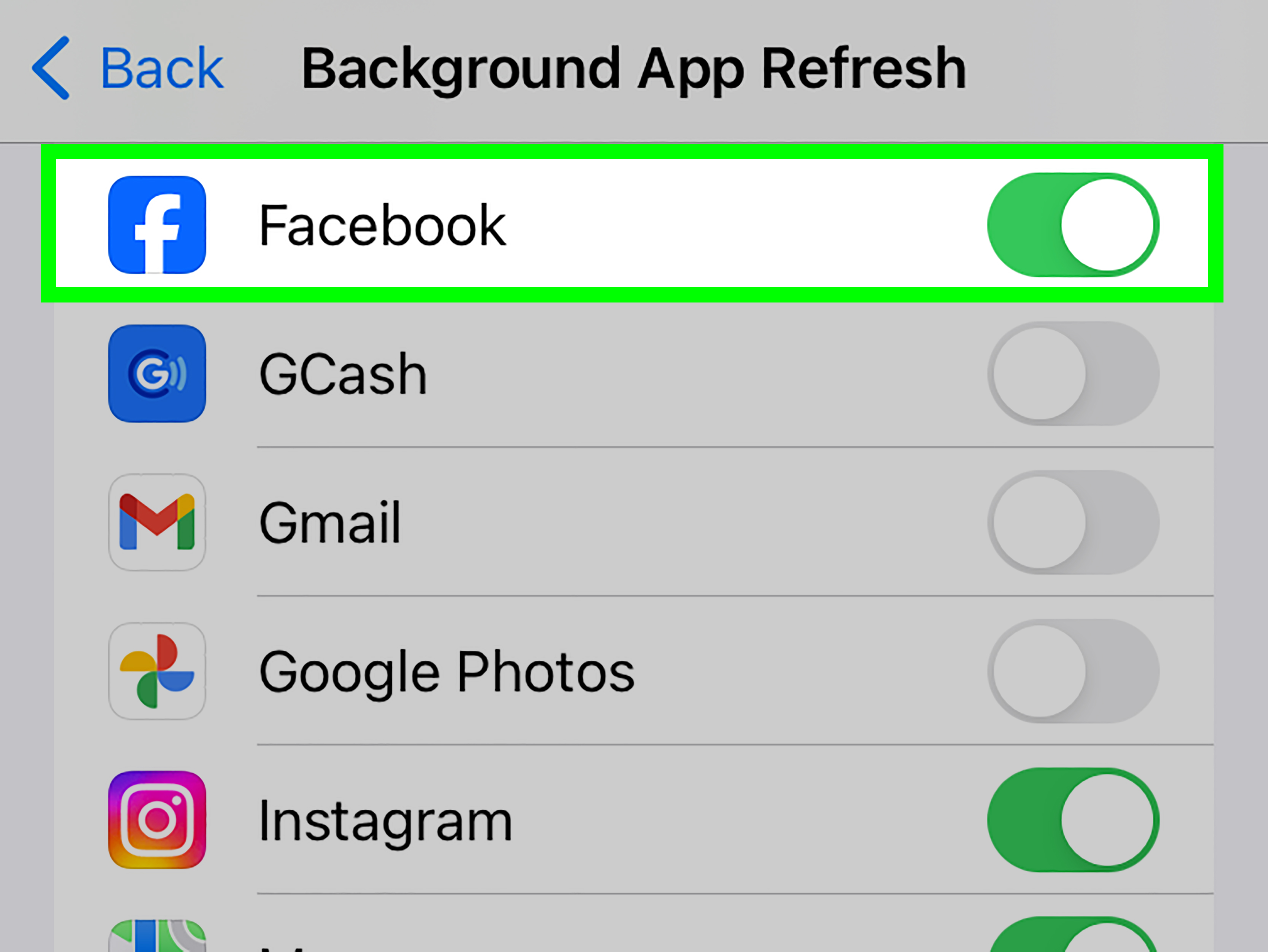
You can also scroll through the app list and turn Background App Refresh on or off for individual apps. This is usually the best option because it gives you control without completely disabling a useful iPhone feature.
What Do the Three Background App Refresh Options Mean?
Off
This turns Background App Refresh off for all apps. Apps will generally update their content when you open them instead of refreshing in the background. This can help reduce battery and data usage, but some apps may feel slightly slower when launched.
Wi-Fi
This allows apps to refresh only when your iPhone is connected to Wi-Fi. For many users, this is the best balance. Apps can stay reasonably fresh without using cellular data. Your data plan can breathe again.
Wi-Fi & Cellular Data
This allows apps to refresh whether you are on Wi-Fi or cellular data. It is the most convenient option, but it can use more battery and mobile data, especially if many apps are allowed to refresh.
Does Background App Refresh Drain Battery?
Yes, Background App Refresh can use battery, but the impact depends on which apps are refreshing, how often they refresh, and how your iPhone manages them. It is rarely the only reason your battery drops quickly, but it can be one of the little leaks that adds up during the day.
Apps that frequently fetch data, update feeds, check location-related content, sync files, or refresh media-heavy information may use more energy than simple apps. A weather widget, travel app, email app, or social media app may benefit from refreshing. A game you play once a month probably does not need the privilege.
For better battery life, Apple recommends managing settings like Background App Refresh and using Low Power Mode when needed. When Low Power Mode is turned on, iPhone reduces or disables several power-hungry features, including Background App Refresh.
Does Background App Refresh Use Cellular Data?
Yes, it can use cellular data if you choose the Wi-Fi & Cellular Data option. That means apps may download new content even when you are away from Wi-Fi. If you have an unlimited data plan, this may not bother you. If your plan is limited, this setting can quietly nibble at your monthly allowance like a raccoon in a snack cabinet.
If you want to avoid unnecessary cellular usage, choose Wi-Fi instead. You can also go to Settings > Cellular and turn off cellular data access for specific apps. That gives you another layer of control.
Background App Refresh vs. Notifications: Are They the Same?
No. This is one of the biggest misunderstandings. Background App Refresh and notifications are not the same thing.
Notifications can still arrive even if Background App Refresh is off, because notifications are handled through Apple’s push notification system and the app’s own notification permissions. For example, turning off Background App Refresh for a messaging app does not automatically mean you will stop receiving message alerts.
However, the app itself may not update its full content until you open it. So you might still get an alert, but when you open the app, it may need a moment to load the latest messages, feed, or details.
Background App Refresh vs. App Updates
Background App Refresh does not mean your iPhone is installing new versions of apps. That is a different feature called App Updates, managed through the App Store settings.
Think of it this way:
- Background App Refresh updates app content, such as feeds, forecasts, inboxes, and synced information.
- App Updates install new versions of apps with bug fixes, security improvements, and new features.
So if someone says Background App Refresh keeps your apps “updated,” they usually mean it keeps the information inside apps fresh, not that it installs the newest app version.
Should You Turn Background App Refresh Off?
For most iPhone users, the best answer is: do not turn it off completely unless you have a reason. Instead, turn it off for apps that do not need it.
Turn Background App Refresh off for apps that:
- You rarely open.
- Do not need real-time or fresh content.
- Use too much battery in the background.
- Use unnecessary cellular data.
- Are games, shopping apps, entertainment apps, or one-time-use apps.
Leave Background App Refresh on for apps that:
- You use often throughout the day.
- Need fresh information when opened.
- Sync important content, such as calendars or task lists.
- Help with travel, maps, weather, fitness, or productivity.
- Feel noticeably slower when Background App Refresh is disabled.
Best Background App Refresh Settings for Most People
The best general setting is usually Wi-Fi. It gives you the convenience of fresh app content while reducing mobile data usage. Then, go through the app list and disable refresh for apps that do not need it.
Here is a practical setup:
- Set Background App Refresh to Wi-Fi for a balanced experience.
- Keep it on for email, calendar, weather, maps, cloud storage, and productivity apps.
- Turn it off for games, shopping apps, video apps, and apps you barely use.
- Use Low Power Mode when your battery is low or you need your iPhone to last longer.
- Check Battery settings to see which apps show high background activity.
This setup is not dramatic, but it works. Technology does not always need a heroic solution. Sometimes it just needs you to tell six random apps to stop refreshing themselves like they are preparing for a TED Talk.
How to Check Which Apps Use Battery in the Background
Before turning off Background App Refresh for everything, check your battery usage first:
- Open Settings.
- Tap Battery.
- Scroll down to view battery usage by app.
- Look for apps with noticeable Background Activity.
If an app you barely use has high background activity, that is a good candidate for disabling Background App Refresh. If a frequently used app shows background usage but provides useful updates, you may decide to leave it alone.
What Happens If You Turn Background App Refresh Off?
If you turn Background App Refresh off, your apps will still work. Your iPhone will not explode, your calendar will not file a complaint, and your weather app will eventually recover emotionally.
However, some apps may take longer to show fresh content when opened. A news app may need to load headlines. A cloud storage app may need to sync. A project management app may need a few seconds to update tasks. The delay is usually small, but it can be noticeable if you rely on certain apps throughout the day.
Turning it off may help with battery life and data usage, especially if many apps were refreshing unnecessarily. The improvement varies from person to person. If your battery problem is caused mostly by screen brightness, poor cellular signal, heavy gaming, video streaming, or an aging battery, Background App Refresh alone will not perform miracles.
Does Closing Apps Save More Battery Than Turning Off Background App Refresh?
Usually, no. Many people swipe away every app in the app switcher because it feels productive. It is the digital version of clearing your desk before doing homework. Satisfying? Yes. Necessary? Not usually.
iOS is built to manage apps efficiently. Apps sitting in the app switcher are often suspended, not actively draining power. Force-closing apps all day can even make your iPhone work harder when you reopen them because the apps must reload from scratch.
Closing an app is useful when the app freezes, glitches, uses location unexpectedly, or behaves badly. But as a daily battery-saving ritual, it is less effective than managing Background App Refresh, reducing screen brightness, using Wi-Fi when possible, checking Location Services, and turning on Low Power Mode when needed.
Background App Refresh and Low Power Mode
When you enable Low Power Mode, your iPhone reduces background activity to extend battery life. Background App Refresh is turned off while Low Power Mode is active. This is why some apps may feel slower to update when your battery icon is yellow.
Low Power Mode is useful when your battery is low, when you are traveling, or when you know you will not be near a charger for a while. It is not only about Background App Refresh. It also affects other features such as mail fetch, automatic downloads, display behavior, and visual effects.
In short: Background App Refresh is one setting. Low Power Mode is the bigger battery-saving switch.
Background App Refresh and Low Data Mode
Low Data Mode is another important iPhone setting. It helps reduce network usage on cellular or Wi-Fi connections. When Low Data Mode is enabled, iOS restricts background network activity, and Background App Refresh may be turned off or limited.
This is helpful if you are on a limited data plan, using a slow connection, traveling internationally, or sharing a hotspot. If your apps suddenly seem less eager to update in the background, Low Data Mode may be one reason.
Privacy: Is Background App Refresh Watching You?
Background App Refresh does not automatically mean an app is spying on you. It simply allows apps to update content in the background under iOS rules. However, any app with background access, network access, notification permissions, or location permissions deserves a little attention.
For better privacy, review these settings:
- Settings > Privacy & Security > Location Services
- Settings > Notifications
- Settings > Cellular
- Settings > General > Background App Refresh
Pay special attention to apps that ask for location access “Always.” Some apps genuinely need it, such as navigation, safety, or fitness tracking apps. Others may not. When in doubt, choose While Using the App or Ask Next Time where available.
Which Apps Should Keep Background App Refresh On?
There is no perfect list for everyone, but these app categories often benefit from Background App Refresh:
Email and Calendar Apps
If you rely on Gmail, Outlook, Apple Calendar, or other scheduling tools, background refresh can help keep information current. However, email behavior also depends on fetch and push settings, so Background App Refresh is not the only factor.
Weather Apps
Weather apps are a classic example. Nobody wants to open a forecast app and see yesterday’s weather pretending to be relevant. Background refreshing helps keep forecasts and alerts fresher.
Cloud Storage and Notes Apps
Apps like cloud drives, note-taking tools, and document managers may use background refresh to sync files or prepare recent content.
Travel and Navigation Apps
Travel apps, airline apps, hotel apps, and transit apps may benefit from background updates, especially when plans change. Still, location permissions matter here, so review them carefully.
Fitness and Health-Related Apps
Some fitness apps use background activity to sync workouts, steps, or connected device data. If you notice delayed syncing, Background App Refresh may be worth keeping on for those apps.
Which Apps Should You Turn It Off For?
Consider turning Background App Refresh off for:
- Games that do not need live updates.
- Shopping apps that mostly send promotions.
- Video streaming apps you open manually.
- Restaurant apps you use occasionally.
- Apps you installed once and forgot, like that random flashlight app from 2017.
If an app does not need to be ready before you open it, it probably does not need Background App Refresh.
Quick Troubleshooting: Background App Refresh Is Grayed Out
If Background App Refresh is grayed out or unavailable, check these possibilities:
- Low Power Mode may be turned on.
- Screen Time restrictions may limit background app activity.
- Your device may be managed by a school, workplace, or organization profile.
- The app itself may not support Background App Refresh.
Start by checking Settings > Battery and turning off Low Power Mode. Then check Settings > Screen Time if restrictions are enabled.
Easy Recommendation: The “Smart Middle” Setup
If you do not want to overthink it, use this simple formula:
- Set Background App Refresh to Wi-Fi.
- Turn it off for apps you rarely use.
- Leave it on for apps that need fresh information.
- Use Low Power Mode when battery life matters more than instant updates.
- Review Battery settings once a month.
This gives you most of the convenience with fewer downsides. It is the iPhone settings equivalent of eating salad with pizza: balanced enough to feel responsible.
500-Word Experience Section: Real-World Lessons From Using Background App Refresh
After experimenting with Background App Refresh on different iPhone setups, the biggest lesson is that the setting is not a villain. It is more like a helpful intern who becomes annoying only when every app in your phone starts giving that intern assignments.
In everyday use, the difference is most noticeable with apps that depend on fresh information. Weather apps open faster. Calendar apps feel more prepared. News apps show recent stories without forcing you to stare at a blank screen. Cloud apps may sync more smoothly. If you check these apps often, Background App Refresh makes the iPhone feel more polished and less “please wait while I remember the internet exists.”
The downside appears when too many unnecessary apps are allowed to refresh. A shopping app does not need to prepare coupons in the background like it is training for the Olympics. A game does not need constant background privileges if you only play it once during airport delays. Social media apps can be convenient with refresh enabled, but they may also become frequent background users because they are always hungry for new content.
A practical experience-based approach is to start with the Battery section in Settings. Instead of guessing, look at which apps actually show background activity. If an app uses a lot of background power and you rarely benefit from it, turn off Background App Refresh for that app. This feels better than blindly disabling everything because you are making decisions based on your own usage.
Another useful habit is setting Background App Refresh to Wi-Fi only. This is especially helpful for students, travelers, or anyone with a limited cellular plan. You still get fresh content at home, school, work, or any trusted Wi-Fi network, but your mobile data is less likely to disappear mysteriously. Nobody wants to discover their data plan has been quietly eaten by apps that were not even open.
Low Power Mode also changes the experience. When it is on, background refresh stops or becomes heavily restricted. That is why some apps may feel slower when your battery icon turns yellow. This is normal. Your iPhone is choosing survival over convenience. Honestly, fair.
The most important lesson is that Background App Refresh should be managed, not feared. Turning it off for every app may save some battery and data, but it can also make certain apps feel slower or less ready. Leaving it on for every app may be convenient, but it gives too many apps permission to use resources you may not want to spend.
The best experience comes from choosing intentionally. Keep it on for apps that genuinely help your day move faster. Turn it off for apps that do not need to do anything until you open them. Review the list occasionally, especially after installing new apps. Your iPhone will feel cleaner, your battery may last longer, and your apps will stop acting like they all have backstage passes to your life.
Conclusion
Background App Refresh on iPhone lets apps update content while you are not actively using them. It can make apps feel faster and more current, but it can also use battery and data if too many apps are allowed to refresh unnecessarily.
The best choice for most users is not to disable the feature completely. Instead, set it to Wi-Fi and turn it off for apps that do not need fresh background content. Combine that with Low Power Mode, Low Data Mode, battery usage checks, and smart location settings, and your iPhone will run more efficiently without losing the features that make it convenient.
In simple terms: Background App Refresh is useful, but it should not be an all-access pass. Give permission to the apps that earn it. Everyone else can wait until you open them.

